When first building workflows in EasyMorph, you might have given no thought to the ways to run the workflow. This is because by default, EasyMorph takes care of running the actions which make up the workflow.
However, you may notice that some actions aren’t run by default. And as our workflows become more advanced and they process higher volumes of data, we may wish to explicitly control how our workflow is run.
Seeing if an action has been run or not
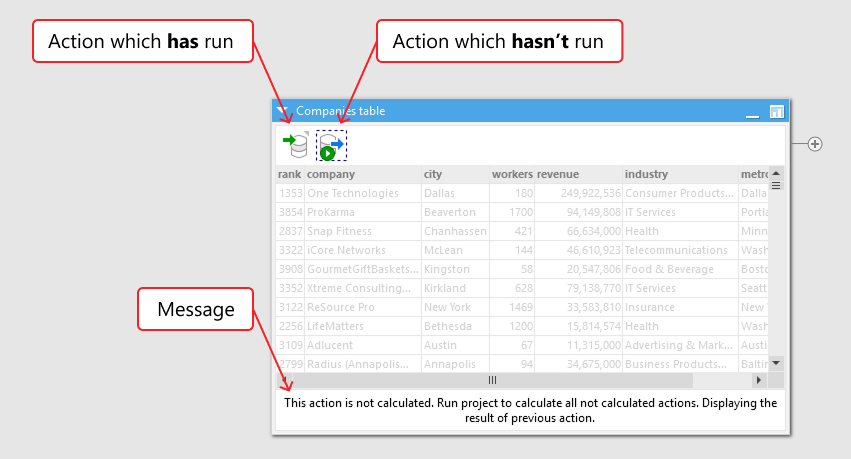
If an action hasn’t be calculated, EasyMorph shows it with a green “play” icon overlayed. When the icon is selected, the table also shows a message indicating the same. You will also notice that the table's data appears grayed out when selecting an action which hasn't run.
Action result caching
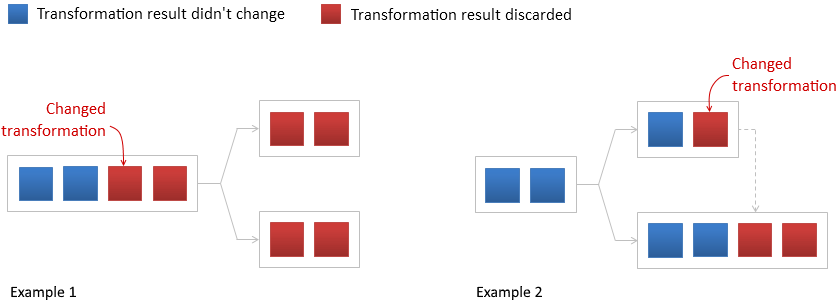
Rather than recalculating every action when we make a change to our workflow, EasyMorph caches the results of the actions it has already run. When we make a change, EasyMorph works out which action’s cache is still valid (i.e. it is not affected by the change) and which actions cache is no longer valid (i.e the change made does affect the data of the action). This caching allows EasyMorph to be as efficient as possible.
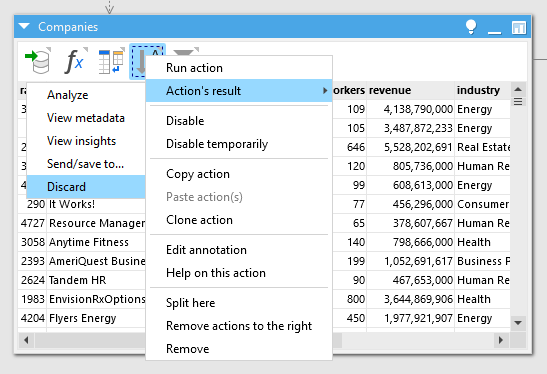
Note: For more information on invalidation of action cached results, see Discarding action results in the Topics for power users section at the bottom of this tutorial chapter.
Auto-run mode
Auto-run mode controls whether actions which have not yet calculated or run should be run automatically when a change is made. By default, Auto-run is turned on, and EasyMorph attempts to automatically calculate most actions not already calculated.
It is because Auto-run is turned on by default that we might not initially realize there are alternative ways to run actions. Actions are silently calculated in the background, without blocking the user interface. Tables and charts are updated as soon as they are finished calculating. If the project was modified while background calculation was running, the calculation silently restarts.
However, if our workflow becomes particularly complex for processes a large amount of data, it can take some time for things to fully calculate. In this situation, you may wish to turn off Auto-run and only run your workflow manually when needed.

You can switch Auto-run on and off from the top navigation bar on the Main tab. To stop running background calculation, switch off Auto-run.
Side-effect actions
Above, we mentioned that most actions are run automatically when Auto-run mode is turned on - not all actions. Any action which potentially changes data or systems outside of EasyMorph do not automatically run to prevent unintentionally affecting data and systems. We call these actions side-effect actions. Actions which export data to files, databases, or systems; those which send messages; and those which run programs or scripts are all examples of side-effect actions.
Dealing with errors from auto-running actions
If errors occur during running actions in Auto-run mode, the action’s icon will display a yellow warning triangle. Additionally, the error counter will appear in the status bar at the bottom right-hand corner of the workflow canvas.
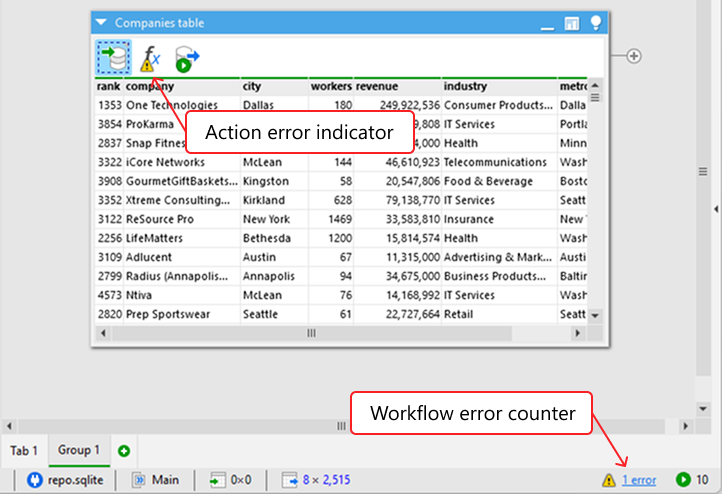
Tip: Clicking the counter opens the list of errors. Double-clicking an error message in the list will bring you to the action where the error occurred.
Running actions manually
When Auto-run is turned off or when using side-effect actions, we may wish to manually force an action to run. You can do this by selecting the action (or multiple actions) and then clicking on the Run action button on the top navigation bar. Alternatively, you can hold the Ctrl key and click on the action, or right-click the action and in the context menu select Run action.

Note: If when running an action manually there are any actions prior to it which also haven't currently been run, EasyMorph will running those action(s) also. This behaviour can be used to run a workflow up to a specific point.
We can also run all currently un-run actions by clicking on the Run all actions button. Alternatively, you can press the F5 key.

Re-running a project entirely
If you need to rerun all actions in a project (e.g. because source files have changed) you can click on the Reload and run button on the top navigation bar. Alternatively, you can hold the Ctrl key and press F5.