In this tutorial we’ll look at expressions and the expression editor dialog in EasyMorph.
What are expressions in EasyMorph?
EasyMorph is designed to be “no-code” wherever possible. As we say in the Previous tutorial, there are often inbuilt actions to perform calculations. There are however some circumstances where is it necessary to use code-like notation, such as when calculating a new total_price column by multiplying the unit_price by the quantity. In EasyMorph, calculations or formulas such as these are called expressions.
Although you might think that expressions will be an advanced topic and something a less technical user may struggle with, there are many tools and features of expressions which make them simple to create and understand. If you are able to calculate a new column in an Excel spreadsheet, you’ll have no problem creating an expression in EasyMorph to do the same. And even if Excel formulas are something you struggle with, you can use the AI powered expression generator to create expressions for you.
Differences between Excel formulas and EasyMorph expressions
If you are new to EasyMorph then you may initially think that EasyMorph expressions like formulas in Excel. Whilst there are some similarities, there are also very important differences which are important to know.
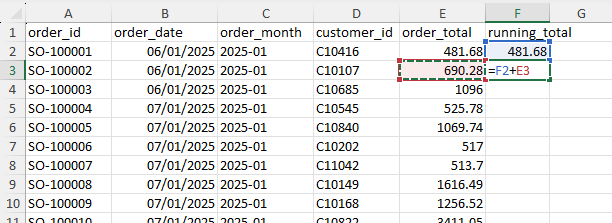
When working in Excel, we use formulas for almost everything, from simply enumerating rows to performing complex financial calculation. EasyMorph is designed to be “no-code” wherever possible. We lead with simple actions which we can add to our workflows, and only when necessary do we want you to have to create expressions. For example, let’s consider adding a running total to our data. In Excel we’d have to write a formula which adds each line’s value to the previous ones, and copy it down to all of the rows:
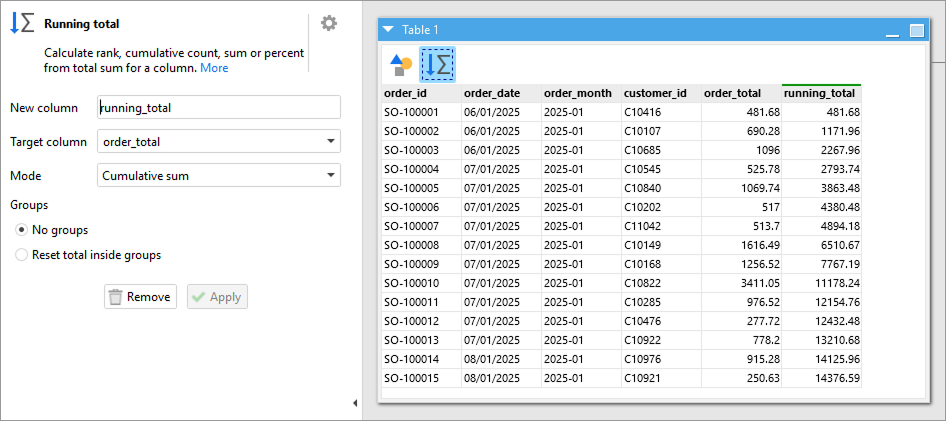
In EasyMorph, we simply add the Running total action to our table and set it up as needed:
Another common example would be to calculate a total. In Excel we used the sum() function with the range of cells to use (e.g. sum(B2:B50)) where as in EasyMorph we’d use the Aggregate action
When we do have to write an expression, there are still some important differences. The first is that Excel formulas always begin with an equals (i.e. =) to indicated it is a formula to be calculated rather than just the value in the cell. As expressions are always something to calculate in EasyMorph, the equals can be omitted. If you do include them, EasyMorph will still perform the calculation.
| Example Excel formula | Equivalent EasyMorph expression or Action |
|---|---|
= 1 + 1 | 1 + 1 |
= IF(C21 = “SOLD”, C20, 0) | if([status] = “SOLD”, [value], 0) |
= TODAY()Today’s date | today() |
= RAND()Random number | random() |
| = VALUE(B2) Convert text numbers to true numbers | asnumber([sales_price]) |
= VLOOKUP(D2, A2:B5, 2, FALSE) | Use the Lookup action |
= F2 + E3Running total | Use the Running total action |
= sum(B2:B50) | Use the Aggregate action |
= CONCAT(A2, “- “, B2)Combine text strings | [product_ID] & " - " [product_name] |
As you may have noticed in the above excamples, some of the functions we can use in EasyMorph expressions are named the same as those in Excel (e.g. today() and if()), but there are plenty which are not (e.g. random() and asnumber()).
Another important difference which is immediately obvious is the use of column names (e.g. product_id) instead of cell or cell ranges (e.g. A2 or A2:A50).
All of this means that if you try to cut and paste a formula from Excel into EasyMorph, you’ll likely need to make some significant changes before it will work.
Tip: You can use the EasyMorph AI expression generator to help convert an Excel formula to an EasyMorph expression. See Using the AI expression generator to convert Excel formulas below for more details.
Where expressions are used
Expressions appear in a wide variety of places within EasyMorph, such as:
- In actions which perform a calculation, such as the Add/calculate new column(s), Modify column(s) and Filter on condition actions.
- In calculated Parameters.
- In conditional branching workflows using conditionally derived tables.
- In actions which require or allow a condition to be applied, such as the Skip action on condition or Filter by condition actions.
An expression can be added anywhere where we see the “Fx” expression icon at the right of a textbox when working in EasyMorph.
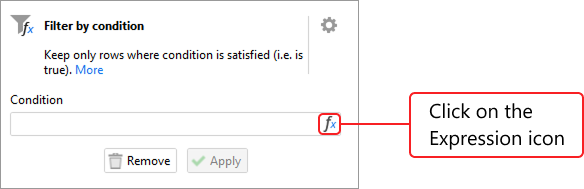
Although we can type our expression directly into the textbox, if we click on the “Fx” icon we open the expression editor dialog.
Navigating the expression editor dialog
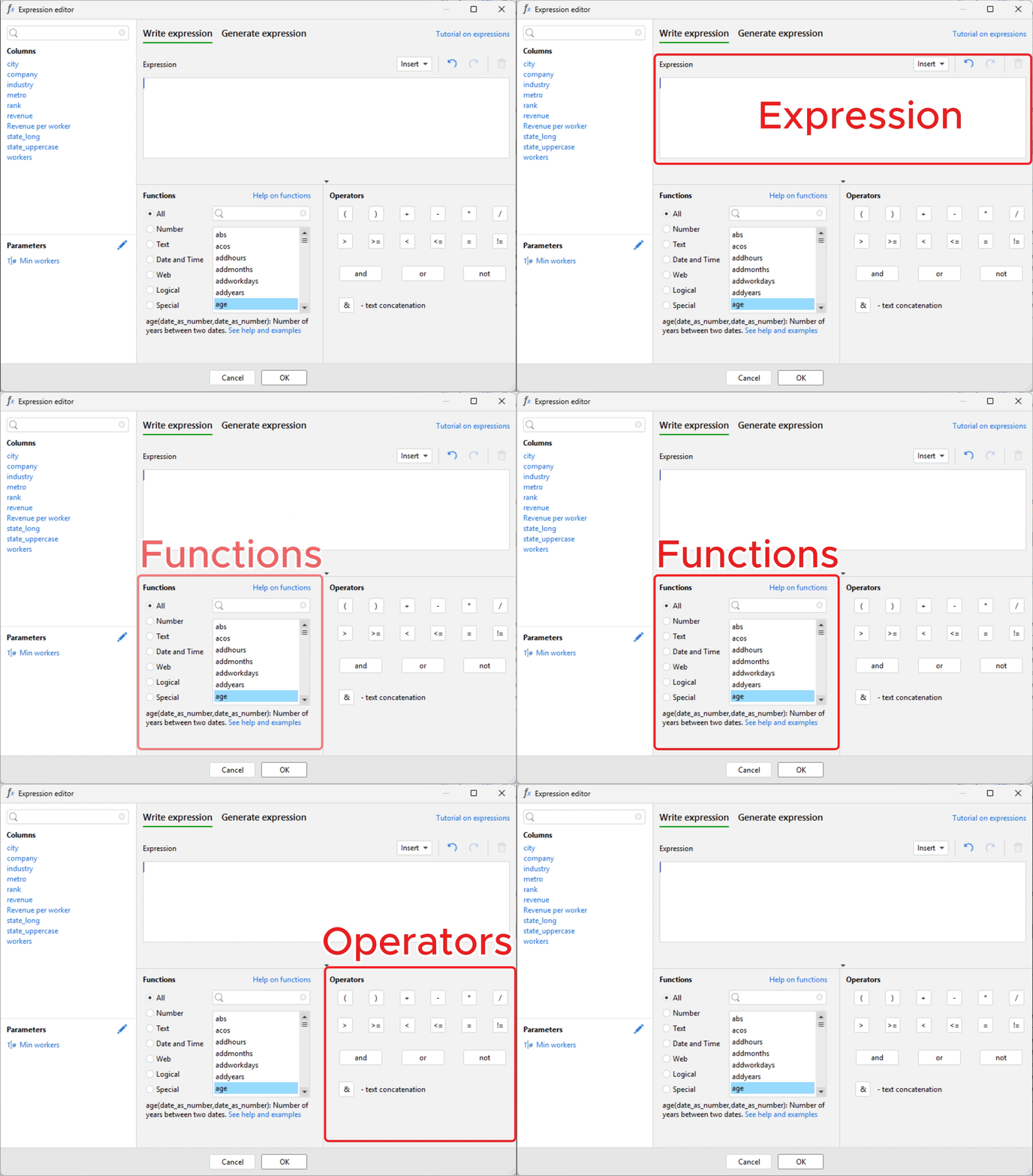
The expression editor dialog provides lots of tools to help us to compose expressions. There are 2 main modes we can use when working in the expression editor, Write expression and Generate expression. We can change the mode using the mode selector at the top of the dialog. We’ll look at the different modes below.
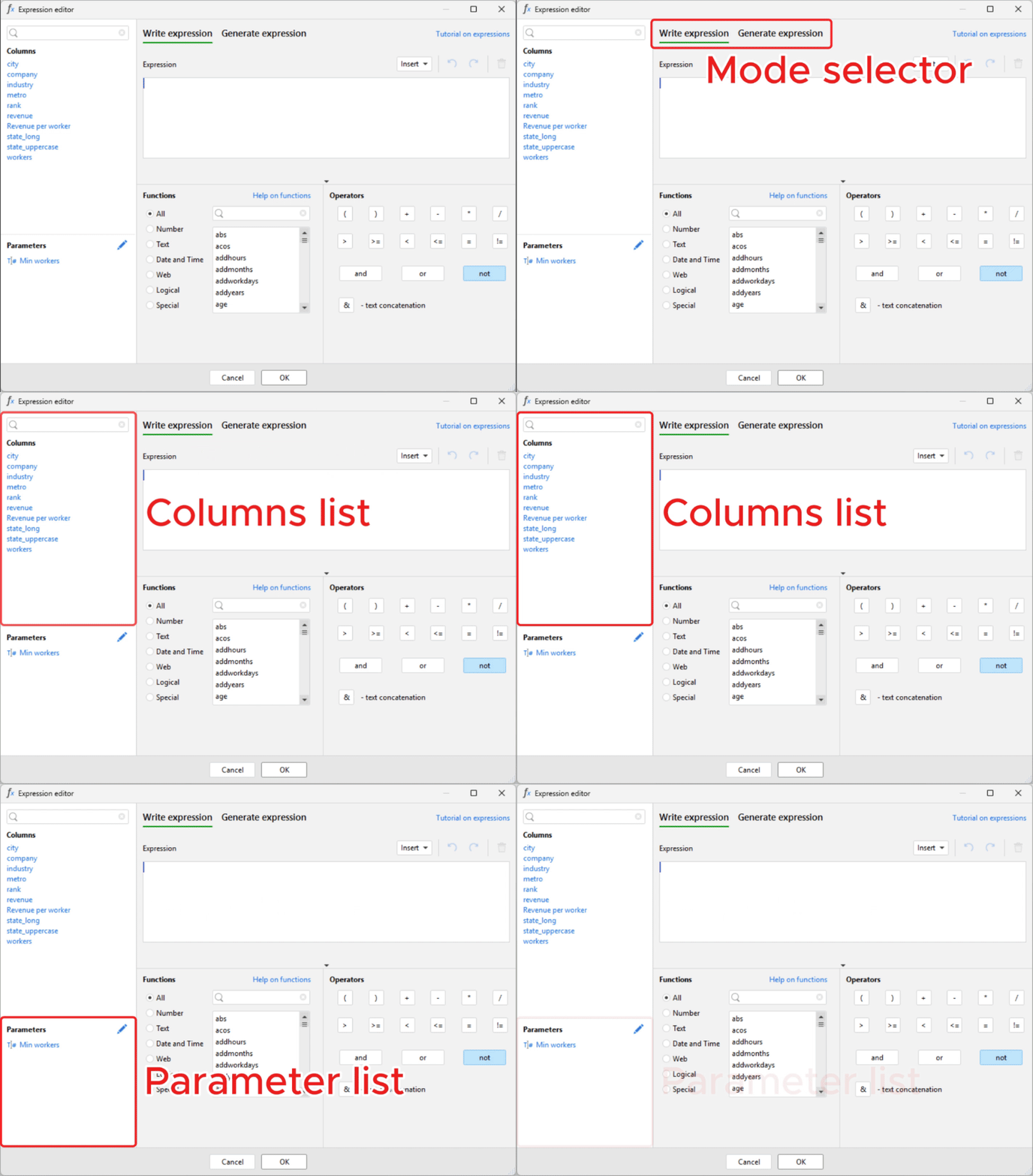
If the expression we are creating or editing is within an action in a workflow table, then on the left of the dialog you will find a list of all of the columns in the table. If there are a large number of columns, we can search them using the search bar at the top of the list.
Also on the left of the dialog you’ll find a list of all of the parameters in our project if you’ve created any.
The AI powered expression generator
When we choose the the Generate expression mode, rather than writing an expression manually, instead we can describe the calculation we’d like EasyMorph to perform and our AI powered expression generator will take care of writing a valid expression for us. This can be exceptionally useful if you are less technical and/or new to working in EasyMorph.
Important: Using the AI powered expression generator requires the use of EasyMorph’s cloud AI service. The first time you use one of the AI powered features you will be be asked to agree to the terms and conditions. Note that your data is never sent to our cloud. Only the following information is transmitted:
- The description of the expression you provide
- The names of the columns within the data table (where relevant)
- The names (not the values) of the parameters within the project
The expression generator couldn’t be easier to use. Simply:
- Enter a description of the calculation you require
- Click on the Generate expression button
- Within a few seconds you’ll see the generated expression
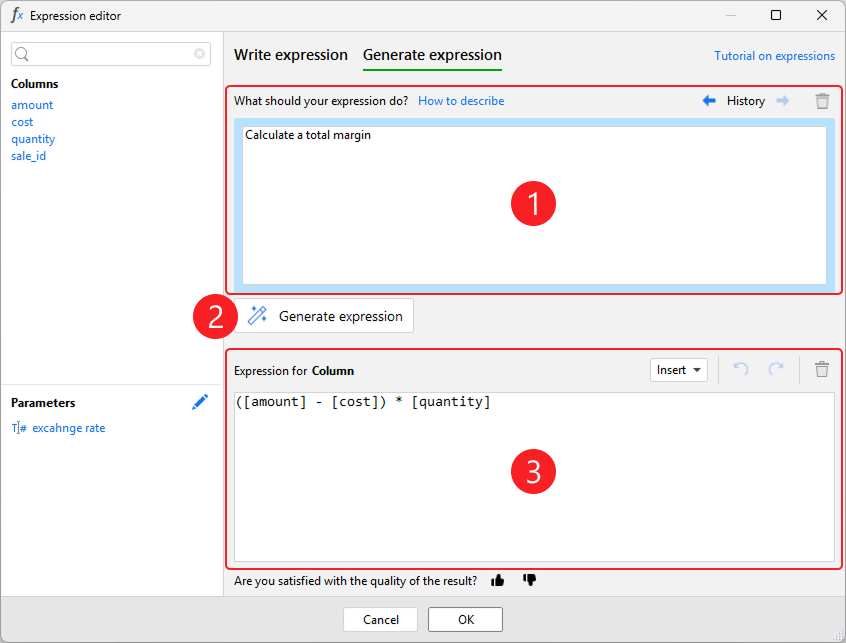
When complete, click OK button at the bottom of the dialog to save the expression and close the dialog.
Tip: The AI engine is very good at working out which columns and parameters you may have refered to, even if you don't use their exact names. However, if you wish to make sure a specific column or parameter is used, you can add them to your description by clicking on their names on the left-hand side of the expression dialog and they will be inserted into your description including the relevant parentheses.
Although the expression generated by the AI is guaranteed to be a valid EasyMorph expression, like anything generated by AI, you should check the expression provides the correct result you expected.
Using the AI expression generator to convert Excel formulas
As described earlier in this section, there are significant differences between formulas in Excel and expressions in EasyMorph. Cutting and pasting a formula from Excel into EasyMorph will rarely work without making significant changes.
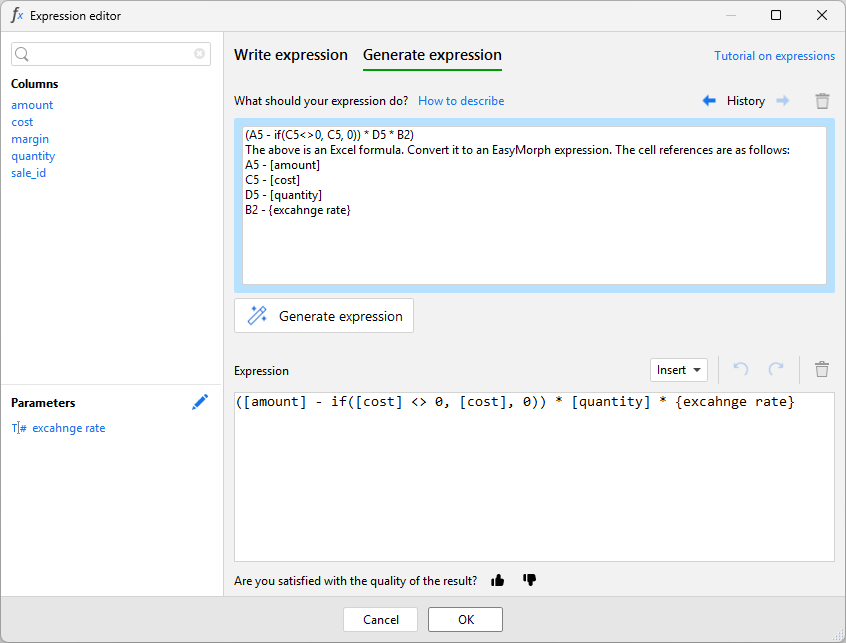
One possible use of the AI powered expression generator is to handle such conversions. Paste your Excel formula into the “What should your expression do?” box along with a suitable instruction. You should consider that as the AI will not be able to see the spreadsheet the formula came from, you will need to include suitable substitutions for any cell references in the formula.
Writing expressions manually
When we choose the the Write expression mode within the expression dialog, we must instead create our expression manually. As mentioned above, these expressions are very similar to Excel formulas and there are various tools available to make it even simpler.
In this mode, as well as the column and parameter names shown on the left, the dialog shows us all of the available functions and operators which can be used.
Expression validation
When we create an expression manually, EasyMorph continually validates that what we’ve entered is a valid expression. If it is not then it will underline in red the approximate location of the error in the expression. A description of the error will also be displayed in red below the expression box.
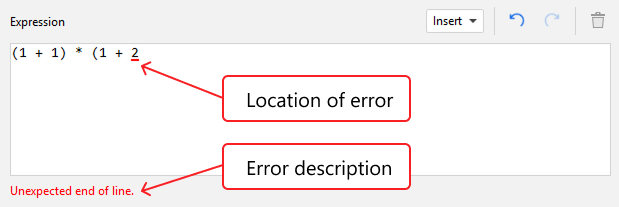
The validation of expressions only confirms that the expressions is free of technical and syntax errors. It does not mean that the expression will do what you intend.
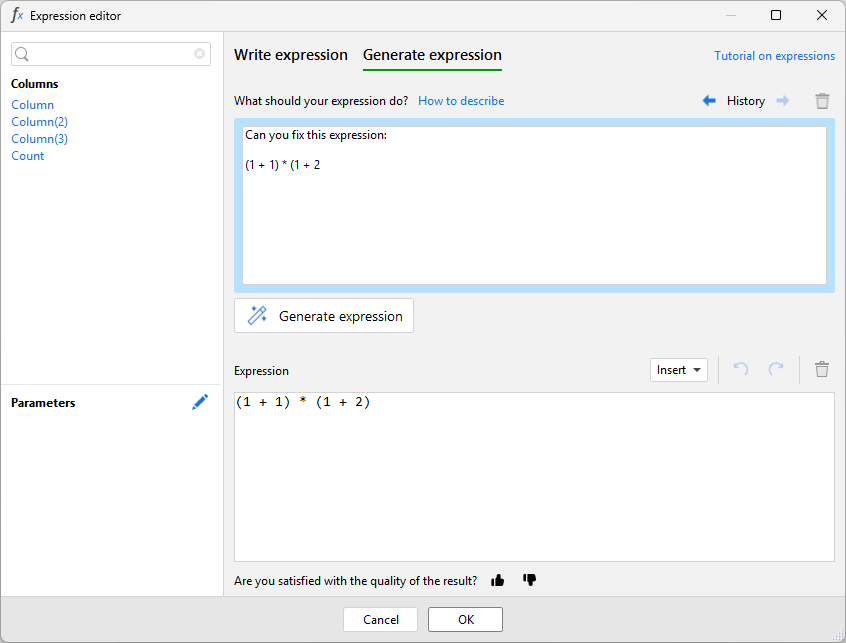
Tip: When writing expressions manually as described below, you may find a problem but not know how to fix it. You can use the AI expression generator to try and fix it. Simply copy the expression, switch to the Generate expression mode, paste the expression into the “What should your expression do?” box along with a short comment that you’d like it to try fix any problems. All being well, the generator should respond with a valid version of your original problematic expression.
Writing numbers, text and dates in expressions
We often need to specify numbers, text or dates when writing expressions. Whole, decimal and negative numbers can be written as follows
123

1000000

1.23

-1.23
Warning: In EasyMorph, decimal numbers use the period (A.K.A full stop) character . to denote the decimal. Using commas for decimal numbers will result in an error.
Additionally, thousand separators such as a comma are not supported when writing numbers in expressions. One million should be written as 1000000 and not 1,000,000.
Text can be written in expressions by using both double and single quotes:
"Some text I have written in double quotes"

'Some more text I have written in single quotes'
If we need to include a double quote in our expression we can wrap it in single quotes and vice versa:
'Some text containing a double quote (") wrapped in single quotes'

"Some text containing a singe quote (') wrapped in single quotes"
We can also write dates in our expressions using the syntax #YYYY-MM-DD. The month and day should always be written as 2 digits, so January should be written 01 and not just 1.
#2026-01-01
Note: Dates written in this way will be treated as proper numeric dates. For more information on dates stores as numbers verses text, see the Data types tutorial in the advanced workflows section of these tutorials.
Mathematical operators and notation
When writing expressions, we can use any of the usual mathematical operators to perform calculations:
| Operator | Description |
|---|---|
+ | Mathematical addition |
- | Mathematical subtraction |
* | Mathematical multiplication |
/ | Mathematical division |
() | Parentheses control order of mathematical operations |
At the bottom of the expression dialog is the Operators section. We can click on any of the operators to inset them into our expression at the cursor location. Note that this list also includes the text concatenation and conditional operators which are described later in this tutorial.
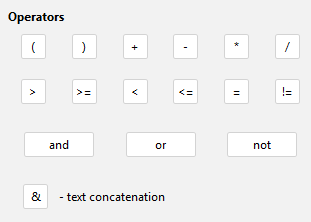
All of the below examples are valid expressions using these mathematical operators:
1 + 1

100 - 5.5

10 * 10

(5 - 2) * 10

(100 - 20) * 10

(50 - 9) * (21 / 7)
Note: Whitespace characters such as space or tab which are placed around mathematical operators are ignored. Therefore, 1 + 1 and 1+1 are both valid and will be calculated in the same way.
Text concatenation
EasyMorph uses the ampersand character (&) as a text concatenation operator. So to combine the text "Some text." and "Some more text" we would write the expression:
"Some text. " & "Some more text"
This will result in a single text string: Some text. Some more text.
If you concatenate a number and text together, then the number is treated as if it was a text string containing the numeric characters and the concatenation is still performed. So the expression:
"The result is: " & 5
Would result in the text The result is: 5.
Column references
To reference a column (A.K.A field) from the dataset in an expression, we wrap the column name in square brackets […]. Note that column names themselves must not contain square brackets. Spaces, punctuation, and non-Latin characters are allowed. In the examples below, [Amount], [Price], [Product ID] and [Product Name] are all column names.
[Price] / 1000

[Amount] * [Price]

"Product price: " & [Price]

[Product ID] & " - " & [Product Name]
Note: Column names are case-sensitive. Therefore [Total], [TOTAL] and [total] are 3 different column names.
Rather than typing them, we can easily add column names to our expressions using the column list on the left-hand side of the expression editor dialog. Place the cursor in the location you want the column name to be inserted into the expression, then click on the column name in the column list.
Functions
Just like in Excel, functions in EasyMorph expressions provide pre-built calculations and capabilities. You can think of them as shortcuts to achieve something which would otherwise be difficult or time consuming if you had to write it yourself. If we consider a very simple example, the pi() function acts as a shortcut for us to add the mathematical irrational number (referred to using π) rather than having to remember and write the number ourselves. So both of the below example expressions are equivalent:
pi() * 2 * 3

3.1415926535897932384626433833 * 2 * 3
Of course, this is an extremely simple substitution and most functions provide far more complex logic and capabilities.
When using a function in an expression, we write the function name immediately followed by a pair of normal parentheses. For example, today(…) would be valid, but today () would not.
A small number of functions do not need any “settings” to tell them what to operate on who how to behave. Some examples include:
today()

now()

random()

pi()
Most functions however do require us to specify settings. We call these settings arguments. Arguments can be a number, text, a data column, a parameter, another function (more on this later) or any other valid expression. Any arguments for a function are specified within the parentheses and separated by commas. Some examples include:
makedate(2026,1,1)

if([Amount] > 100, "Large order", "Small order")

replace([Product Code], "\", "-")

left([Product Code], 2)
Be aware that for some functions, one or more of the argument might be optional. For example, when using the round() function as well as the number we wish to round, there is also an optional second argument which allows us to define the number of decimal places the number should be round to. If this second argument is omitted, then it is assume to be 0. Therefore round(1.23) would return 1, as would round(1.23, 0). But round(1.23, 1) would return 1.2.
Functions can be used as arguments of other functions. For example, I may want to know the current month. The today() function returns the current date, and the month() function can be used to extract the month from a date. Therefore I can combine these two functions placing one inside the other as follows:
month(today())
We refer to using functions in this way as nesting. There is almost no limit to how many levels of nesting you can use. If we consider the example which works out what year 6 months ago was:
year(addmonths(today(), -6))
The functions are nested as follows:
- year()
- addmonths()
- today()
- addmonths()
EasyMorph effectively runs the most nested function first (today()), using the result when calculating the next level up (addmonths()), and continuing to use that result in calculating the top level (year()).
Note: The full list of functions with detailed examples, the required and optional arguments and descriptions of what they do can be found in the EasyMorph web-help.
The full list of functions is also available within the expression dialog.
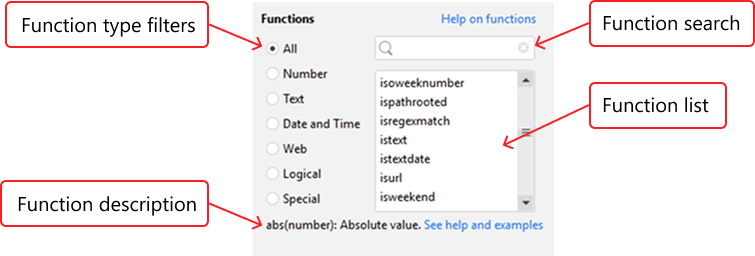
To help you find the function you need, we divide them up into the following categories:
- Number functions - Those which are used to perform operations on number values are mostly return a number also.
- Text functions - Functions which are used to perform operations on text values are mostly return a text value also.
- Date and Time - Those used for working with dates and times.
- Web functions - Functions with relate to working with data from the web, such as URLs or JSON / XML data.
- Logical functions - Functions which test the data in some way and are mostly used in conditional expressions which are explained below.
- Special functions - All other functions which don’t quite fit into any other category.
Clicking on any of these categories in the expression editor will filter the functions list to just those relevant functions. There is also a search bar which we can use to find functions.
Tip: If you are looking for a function equivalent to an Excel formula function, the search can be a great way to find the EasyMorph equivalent, as even if it isn’t named precisely the same, it is often similar (e.g. RAND() in Excel and random() in EasyMorph).
Once we find the function we want, we can easily add it to our expression by double-clicking it in the list. The function will be inserted into the expression at the point where our cursor is.
Conditions
A condition is an expression that must return or evaluate to either TRUE or FALSE. They are used in lots of different places in EasyMorph, including:
- Some actions which require a conditional expression, such as the Filter by condition, Rule and Skip on condition actions.
- Parameter validation expressions.
- Some functions used in expressions require a condition as an argument. Most notable is the if() function which requires a condition as the first argument.
- Some special operators (e.g. the ASSUME operator) used in expressions.
Condition operators
There are a number of operators which are used exclusively within conditional expressions. These operators can be considered as one of two types.
Comparative operators are used to compare what comes before them with what comes after them:
| Comparative operator | Description |
|---|---|
| > | Greater than |
| >= | Greater than or equal to |
| < | Less than |
| <= | Less than or equal to |
| = | Equal to |
| != | Not equal to |
| <> | Not equal to |
Some examples of using these comparative operators are:
[Amount] >= 1000

[Product Type] != "Toys"

([Price] - [Discount]) <> 0
There are also logical operators used for either combining multiple conditions into a single condition, or negating a condition.
| Logical operator | Description |
|---|---|
| AND | Logical AND combine |
| OR | Logical OR combine |
| NOT | Logical NOT condition negation |
Note: AND, OR and NOT are all case insensitive. Therefore and, or and not are also valid and will work the same way.
Examples of conditions using these logical operators are:
[Amount] > 1000 AND [Qty] <= 10

[Amount] < 10 OR Amount > 100

Amount > 1000 AND NOT [Product Type] = "Toys"
Conditional operators can also be combined with parentheses to define more advanced condition expressions:
([Amount] > 1000 AND [Qty] <= 10) OR contains([Product name], 'Deluxe')

([Amount] > 1000 AND [Qty] <= 10) OR NOT contains([Product name], 'Deluxe')

[Country Code] = 'CA' OR [Country Code]='US'

NOT ([Country Code] = 'CA' OR [Country Code]='US')
Note: If a condition returns anything other than TRUE or FALSE for any row, the action that uses the condition will fail. See the Data types section of the advance tutorials section for more information on value types in EasyMorph.
You can use the Clean up action or the iserror() function to detect and handle errors in a column if required.
The “is” functions
Particularly useful when writing conditional expressions are a group of functions specifically designed for this purpose. These functions are often referred to as the “is functions” because their names all begin with “is”. Some test for specific types of data such as the istext() and isnumber() functions. Others test more specific criteria such as the isinteger() and isemail() functions.
Because they all return a TRUE or FALSE value, you can simply write:
isinteger([value])