The Hub Link is a mechanism that makes EasyMorph Desktop integrate with EasyMorph Hub and use some of its capabilities. When configured, the Hub Link automatically connects your Desktop with the Hub on application start. This connection allows Desktop users to work and collaborate with the help of the Hub:
- Share datasets via Hub — publish datasets to and open from Hub
- Share projects — publish projects to and open from Hub
- Create and manage a common Data Catalog to share and consume data and data assets (such as BI reports)
- Sharing a Hub-hosted connector repository with other Desktop users
A configured Hub Link is not mandatory for Desktop, however some Desktop features explained in this chapter require Hub and Hub Link. Therefore, we want to ensure that you know how to link your Desktop to EasyMorph Hub.
Configuring Hub Link
The Hub Link can be configured from the Start screen of EasyMorph Desktop. It requires specifying the Hub host (the Hub computer name) and at least 1 Hub space (typically your team or department should have a designated Hub space). If you're not sure about the Hub host and space name, consult with your nearest Hub administrator. While multiple Hub spaces can be configured in the Hub Link, it connects to only one space at a time, which becomes the current space. Switching spaces can be done from the Start screen as well.
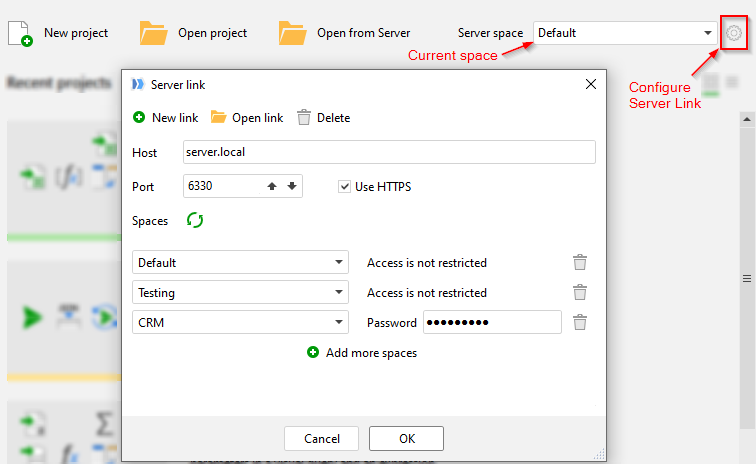
Hint: There can be multiple Hub connections configured in the Hub Link. This allows quick switching between, for instance, production and development Hubs.
Leasing a license from Hub
Once you have configured the Hub Link, you can automatically obtain a user license from the Hub. See this article for more details: "How to lease a license from EasyMorph Hub".
Hub-hosted connector repository
In organizations that employ EasyMorph Hub, it is possible (and recommended) to make Desktops use a connector repository provided by the Hub via the Hub Link. A Hub-hosted connector repository is a more secure option compared to file-based repositories described earlier in this tutorial. Accessing a Hub-hosted repository can be restricted to the users of the Hub space that provides the repository. Additionally, copying connectors from such a repository can be disabled by Hub administrator. At the same time, creating new and editing existing connectors is still possible via the Desktop's Connection Manager, even for Hub-hosted repositories.
To start using a Hub-hosted connector repository:
- If you are a Hub administrator, in the Hub space settings, permit accessing to the connector repository for Desktops (it's disabled by default). Skip this step if you're not a Hub administrator.
- In EasyMorph Desktop, configure the Hub Link as described above.
- In EasyMorph Desktop, open the Connector Manager and switch to using the Hub Link (see screenshot below)
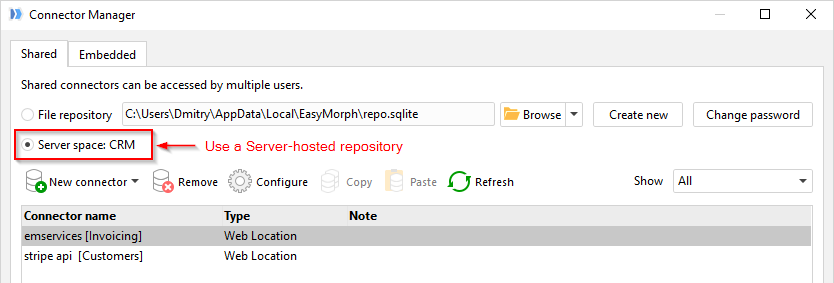
Note that if Hub Link is switched to another space, the current repository is also switched to the repository of that space. The location of the current connector repository can always be seen in the application's status bar (see screenshot below).

Hint: When a project with actions that use Hub Link is executed on EasyMorph Hub, it uses the connector repository of the Hub space in which the project is executed.
Publishing projects to Hub / Opening projects from Hub
To publish the currently open project to Hub, press the "Publish to Hub" button in the "Project" menu. When the dialog "Publish project to Hub" opens, select a location in the public folder of the current space. Publishing a project is equivalent to uploading the project to Hub using the Hub's web interface.
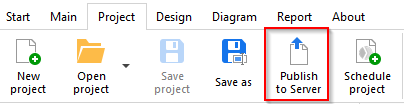
Opening a project from Hub can be done from the Start screen. After the Hub Link is configured, the "Open from Hub" button appears next to the regular "Open project" button (can be seen in the uppermost screenshot on this page). When a project is opened from Hub, a local copy is saved first and then is opened in EasyMorph. When editing the project, it's the local copy that becomes edited. Saving an edited project doesn't upload it automatically back to Hub. To publish the edited project to Hub, publish its local copy by pressing the "Publish to Hub" button as described above.
Sending datasets to Hub / Receiving datasets from Hub
The result of any action can be sent (published) to Hub as an EasyMorph dataset in two clicks. It makes it easy to share data between EasyMorph users. To send the result of an action to Hub, right-click the action and choose "Send to Hub".
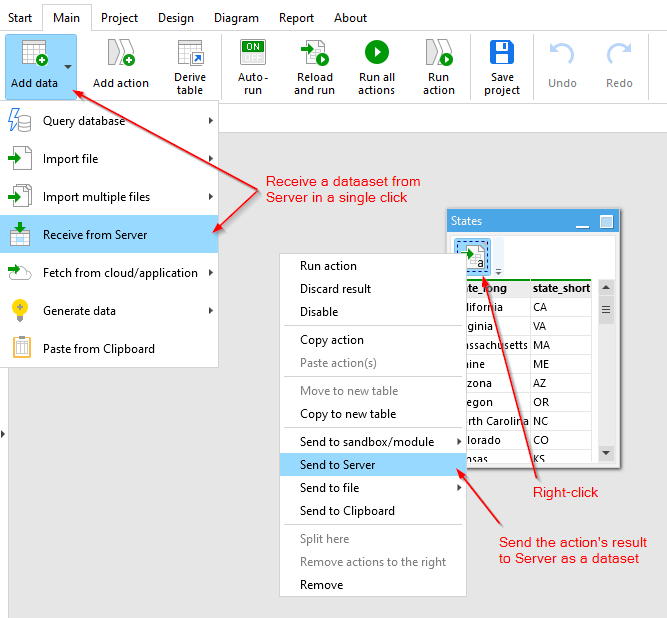
To receive a dataset from Hub, press the "Add data" button and choose "Receive from Hub". The "Import dataset" action will be created automatically and the selected dataset will be immediately fetched from Hub.
Both the "Import dataset" and "Export dataset" actions support Hub Link as a source/destination. It makes it possible to securely store datasets on EasyMorph Hub (as an alternative to storing data in a database) and fetch them on the fly, when a project is opened. This technique is called "hot-linking datasets". It also makes it easy to share a project with another person. The project will be automatically populated with data as soon as the recipient opens it. To read more on hot-linking datasets, see this Community forum article: "Hub Link explained".