In this tutorial we’ll look at data types and specifically, what data types exist within EasyMorph, and what tools are available for identifying and working with these types.
Important: If you haven't already, we strongly recommend that prior to continuing with this tutorial read first read the Expression editor tutorial, especially the sections relating to writing expressions manually. This will help you to understand better many of the examples provided below.
What are data types?
In almost all systems and tools which store and process data, values in the data are grouped together based on specific traits, such as:
- Are they numeric?
- Are they whole numbers or decimals?
- Are they only positive or can they be negative also?
- Are they text?
- How long is the text?
- Do they use characters from the Roman/Latin alphabet or can other characters be included?
There can be great variation between the number of data types, what they are called, and the specific traits for each type. A few common examples you may have come across before are:
- Integer - Whole numbers only.
- Float - Numbers which can be decimal values.
- Booleans - Binary 1 or 0, on or off, or True or False.
- Strings - Text values of any length.
- Char(x) - Strings of characters which are all “x” characters long.
The definition of the possible data types within a specific tool or technology is know as the type system. In most databases, data preparation/ETL tools, and systems we define a specific column as being one of the available data types. All values then stored in that column must then adhere to the traits for that type. So for example, if I define a column as integer, all values must be whole numbers. If I try and add numbers with decimals or text to the column, they would be rejected.
Data types in EasyMorph
When systems have large numbers of different data types with complex definitions, it can be quite technical to implement and understand.
Because we want EasyMorph to be used by both technical and less technical people alike, the type system in EasyMorph is comprised of just 5 simple data types:
- Text
- Number
- Boolean
- Error
- Empty
When we import data into EasyMorph, it is converted from the data type in the source file, database or system to whichever of these data types is relevant.
Important: Unlike in most other data tools, we do not define the data type for a column in a table. EasyMorph can therefore store a mixture of values of any the 5 data types all within a single column.
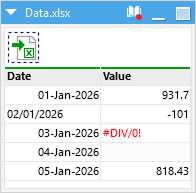
Just like in Excel where by default text is aligned to the left and numbers are aligned to the right, values in EasyMorph are formatted and aligned based upon their data types as follows:
| Data Type | Formatting |
|---|---|
| Text | Aligned to the left. |
| Number | Aligned to the right. |
| Boolean | Centre aligned. |
| Error | Displayed in red text with a preceding hash (#) symbol. |
| Empty | Displayed as an empty cell with a very light grey background. Note that on some computer screens it can be difficult to distinguish the light grey background from the usual white cell background. If required, the grey can be made darker in the application settings. |
This means we can infer an individual value's data type by looking at how it is displayed in the workflow table’s datagrid.
Let’s look at each data type and the tools and technique available specific to them:
Text
Text values in EasyMorph are strings of characters encoded in UTF-8. There are several actions specifically designed for working with and manipulating text, such as:
- Concatenate text
- Split delimited text into columns
- Split delimited text into rows
- Sanitize text
- and more…
When working with text in expressions, we can wrap them in either single or double quotation marks. To use a single quote in text, we can wrap it in double quotes and vice versa.
'Easy'
"Morph"
'Some text containing a double quote (") wrapped in single quotes'
"Some text containing a singe quote (') wrapped in single quotes"
To append text strings (also called concatenating), we can use the ampersand (&) operator:
'Easy' & "Morph"
[Field containing text] & "more text"
There are lots of text functions available to use in expressions specifically for manipulating and formatting text values. A few of the most commonly used worth noting are:
char(10)for specifying a specific character by its ASCII character code.remove("2026-01-01", "-")andreplace("2026-01-01", "-", "/")for removing and replacing a character or string of character in a text value.left("ABCDEFGHIJKLM", 3)andright("ABCDEFGHIJKLM", 3)for returning just the left or rightmost X characters of a text value.upper("abcDEf"),lower("abcDEf")orproper("abcDEf")for converting text to upper, lower or proper/title case.trim([TextField])for removing spaces and other whitespace characters from the beginning and end of text values.len(“ABCDEFGHIJKLM”)for returning the length of a text value.istext([value])to test if a value is text.
Number
Numbers in EasyMorph can be either integer or decimal numbers with a fixed decimal point. Floating point numbers and numbers in the exponential notation are not supported.
The effective range for numbers in EasyMorph is approximately -7.9 x 10^28 to 7.9 x 10^28 which is 28-29 significant digits with or without decimal point between them.
When working with numbers in expressions, we can use any of the normal mathematic operators (+, -, / and *) and notation such as brackets:
123 + 456
[value] * [qty]
( [value] - [cost] ) / [cost]
There are also a large quantity of number functions available to use in expressions. A few of the most commonly used worth noting are:
round([value])to round a decimal number up or down to the nearest whole number.floor([value])andceiling([value])to round a decimal either up or down.iseven(100)andisodd(101)to test if a number is and even or odd number.isnumber([value])andisinteger([value])for testing whether a value is a nuumber.
Boolean
Boolean values can only be either TRUE or FALSE. They are sometimes called binary values in other tools as in binary a value can only be either 1 (equivalent to TRUE or on) or 0 (equivalent to FALSE or off).
A condition expression, such as those used as the test in an IF…THEN…ELSE statement must always equate to a boolean value. For example:
1 = 1is TRUE1 > 2is FALSE[value] >= 5does equate to either TRUE or FALSE1 + 1is 2 which is a number and so not a boolean value
Empty values
If a table cell has no value it is the data type empty.
Empty values are similar to null values in relational databases, but there are important differences. For instance, in most SQL databases, a null value is never equal to any other value, even another null. Therefore all of the below return FALSE.
<null> = null
<null> = ""
<null> = ''
In contrast, empty values in EasyMorph are more like empty cells in Excel. An empty value in EasyMorph is always equal to another empty value, and is also equal to an empty string in expressions. Therefore, all of the following conditional expressions return TRUE:
<empty value> = <empty value>
<empty value> = ""
<empty value> = ''
In expressions we can check if a column value is empty or not using the isempty() function, which returns a boolean TRUE or FALSE.
The length of an empty value is always zero. And so the following condition expression will equate to TRUE:
len(<empty value>) = 0
To create an empty value in an expression we can use the empty() function. For example:
IF [Column 1]='AAA' THEN 'Triple A' ELSE empty()
We can also test if a value is empty using the isempty() function.
Errors
Errors are special values that indicate a problem, such as an incorrect calculation. Like in excel where some cell formulas can result in an error, an error value in EasyMorph most commonly results from an error in an expression. For example, if we create a formula in Excel which divides by zero (e.g. “= 1 / 0”), the cell displays the error:
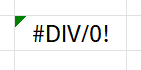
If we do the same in EasyMorph, we see a similar error value as the result of the expression:
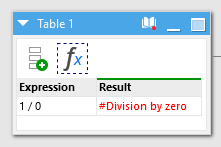
Note: When we import data from an Excel spreadsheet which contains cell calculation error such as the ones shown above, these errors will be converted to error values within EasyMorph.
We can test if a value is an error using the iserror() function, which returns a boolean (i.e. TRUE or FALSE). For example, to replace error values
IF iserror([value]) THEN empty() ELSE [value]
We can create our own specific error values using the error() function.
IF [value] < 0 THEN error("Value is a negative number") ELSE [value]
Note that referencing an error value is also an error.
Warning: Calculated parameters must not evaluate to an error. If a calculated parameter evaluates to an error, then workflow execution will fail.
Dates
You may have already noticed that there is no dedicated data type in EasyMorph for dates. Instead, as in Excel or many relational databases, dates are stored as numbers.
The number stored for a date represent the number of days before or after a chosen base date, known as the epoch. In both Excel and EasyMorph, the epoch date is January 1st, 1900. Dates after this epoch will be positive numbers and dates prior to it will be negative numbers. So as an example, 42680 corresponds to November 6th, 2016 because there are 42680 days from January 1st, 1900 to that date.
Note: If EasyMorph displayed dates to us as the numbers they are stored as, most of us would find it impractical and we’d end up constantly converting them to a date we are familiar with. Therefore, when displaying dates in a workflow table’s datagrid, EasyMorph can format them back into a more human readable form. See the section Formatting numbers (including dates) below for more information.
When working with dates in expressions, we can write dates using date literal notation in the format #YYYY-MM-DD. For example:
IF [Date] > #2026-01-01 THEN [Date] ELSE error("Invalid date")
Alternatively, we can use the makedate() function in a similar way:
makedate(2026, 1, 1)
Because dates are numbers, there is no need to use special functions for simple calculations involving dates, such as working out the number of days between two dates, or adding or subtracting days from a date. As a date’s number is the number of days before or after the epoch, a single day is equal to 1. Therefore, [date] + 1 is equal to the day after the date, [date] + 2 is equal to two days after the date, etc.
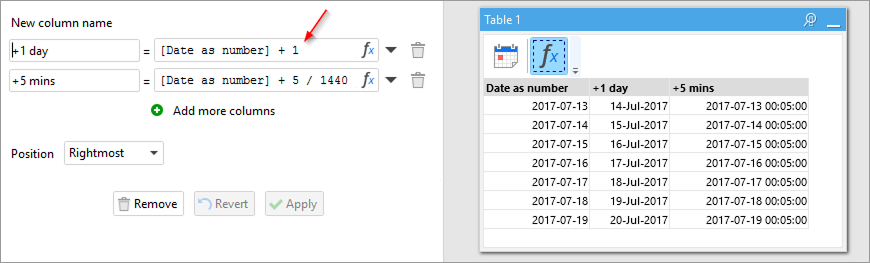
In the same way, we can calculate the number of days between two dates by simply subtracting one from the other:
[date_shipped] - [date_ordered]
Adding other time periods to a date can be more tricky. For example, adding a week is simply a case of [date] + 7 as a week is always 7 days long. Months can range from 28 to 31 days and years can be either 365 or 366 days long depending on whether it is a leap year or not. Thankfully there are two functions, addmonth() and addyears(), which take care of handline the variation in length for us.
There are lots of other date functions which can be used when working with dates in expressions.
We sometimes need to generate a list of all dates between two days, such as if we need to ensure a table contains records for all dates, not just those for which data already exists. The Calendar action allows us to do exactly that, creating a table of dates which we can then merge our data into.
Formatting numbers (including dates)
To make data easier to read and understand, we sometimes wish to format a number in a specific way. For example, it can be easier to read numbers if they are displayed with thousand separators, turning 123456789 into 123,456,789. Or display percentages instead of fractional number, turning 0.25 into 25%.
This kind of formatting is particularly important when working with dates in EasyMorph which are stored as numbers, as described above. Formatting the stored numbers into a human readable date can be extremely helpful.
We can change a column’s display formatting by firstly selecting the column in the table’s datagrid in our workflow, and then choosing a format from the column information bar found at the top of the workflow canvas.
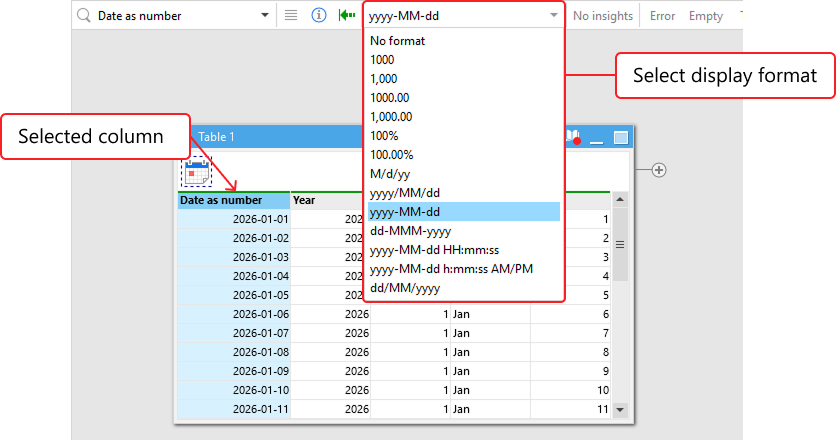
Important: When we change the display formatting of a column, it does NOT modify the underly values in the data. They are simply displayed to us differently in the table’s datagrid.
By default, number values are not formatted. Although, for new columns, EasyMorph will attempt to auto-detect dates and automatically set column formatting to a date format for us. In some cases, the auto-detection may not get it correct. For instance, a range of US zip codes which contain only numeric characters can be mistakenly detected as dates. When this happens, we can manually override the auto-detected format in the same way as described above. EasyMorph will remember your preference for that column going forwards.
Converting data types
When preparing data, it is common to come across data being stored as the incorrect data type. One common example already mentioned above would be dates and timestamps stored as text instead of numbers. It is common to also come across actual numbers being stored as text, such as "12345" instead of 12345.
The Convert data type action has multiple options for converting values of one data type to another.
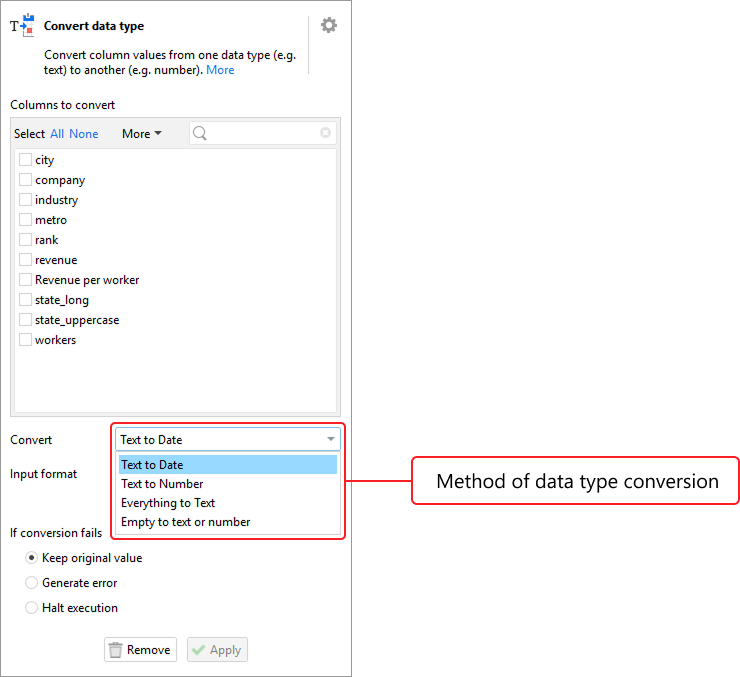
Also useful for converting dates stored as text into numbers is the date() function, which can be provided a date format to use to interpret the text:
date("December 8, 2023 12:18 PM", "MMMM d, yyyy hh:mm tt")
Profiling data by data type
Whilst exploring a new dataset or whilst investigating possible data quality problems, it can be useful to see a profile of the data types within a table and it’s columns. For example, if we expect a column to only ever contain text but some values are number, this might indicate a data quality issue which needs to be investigated and resolved.
EasyMorph provides multiple tools to help understand the data type(s) of the date:
The cell profiler dialog
If we right-click any cell in a table’s datagrid and select “Profiler”, we open the cell profiler dialog. This dialog explicitly tells us the data type of the selected cell, as well as other related information.
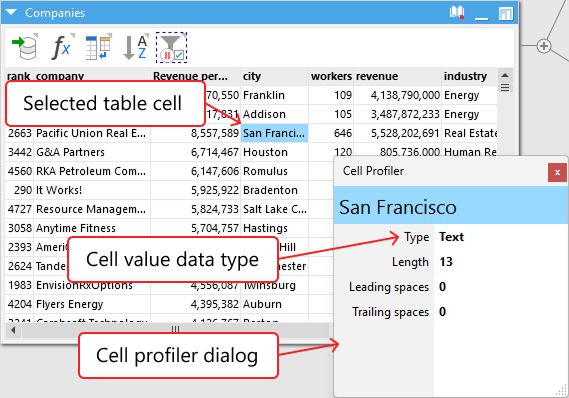
Tip: You can leave the cell profiler dialog open and click into any cell, allowing you to quickly inspect multiple values.
The column information bar
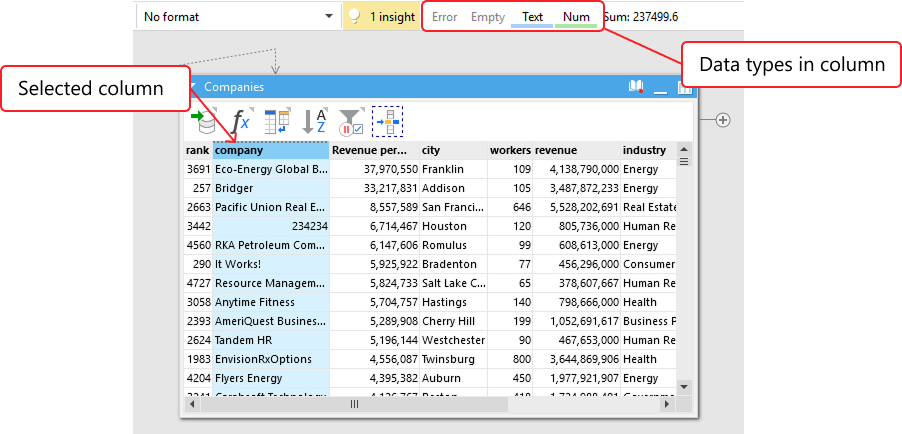
If we select a column in a table’s datagrid, the column information bar found at the top of the workflow canvas will display an indication of the data types of the values in the column.
The column profiler dialog
If we right-click the header of a column in a table’s datagrid and select “Filter/profile”, we open the Filter/profile column values dialog. This dialog contains a Profile tab which provides a breakdown of the different data types within the column.
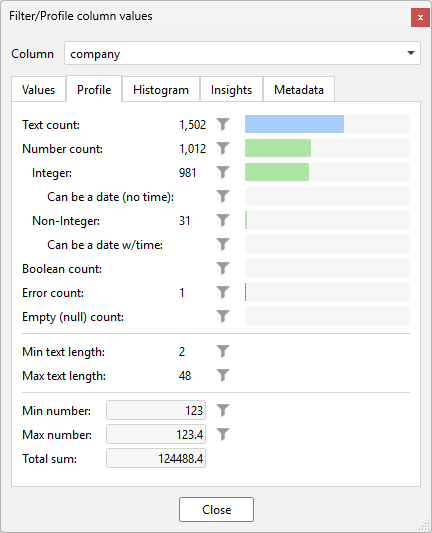
If we want to see the data values for one of the data types, we can click on the funnel icon next to the count to quickly add a filter action to our table’s action chain, set to filter to only those values.
Tip: You can leave the dialog open and click into any column header, allowing you to quickly profile multiple columns.
The table metadata dialog
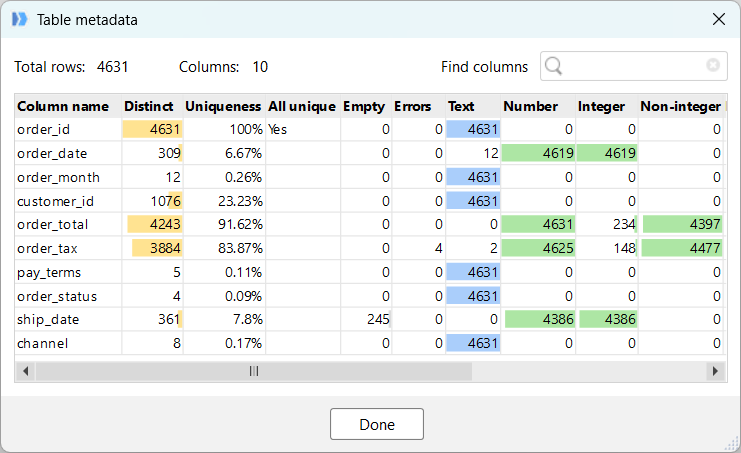
If we right-click any action in our workflow and select Action’s result → View metadata from the popup menu, we open the Table metadata dialog. This dialog shows us all of the fields within the table, including counts for the number of values for each data type.
The data type Facet in Analysis View
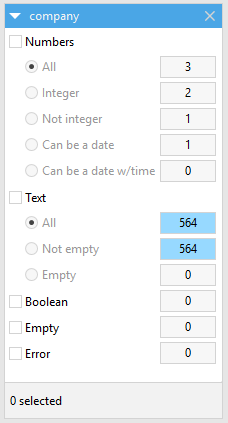
If we open any table in our workflow in Analysis View, we can add and apply instant filters to help us to explore and understand the data. Instant filters have different modes which allow us to filter data in different ways. We call these modes Facets. The profiler facet allows us to instantly see and filter by the different data types within a column.
Insights regarding data types
As we load, analyse and transform data in EasyMorph it continuously checks for potential problems and data quality issues. It then offers “insights” into these potential problems. Some of the checks performed relate to the data types of the values in a column.
For example, if a column contains mostly text values but a small number of values are numbers, EasyMorph will provide an insight telling us this. Similarly, if a text value contains only numeric character and so could be converted to a proper number value instead, again an insight will be shown.