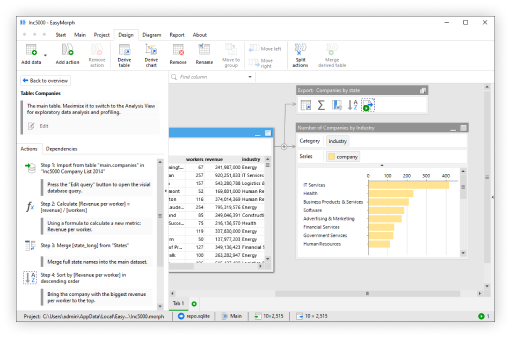
6 weeks ago, we released the first Beta version of EasyMorph version 6. Since then, we’ve received some fantastic feedback and the team here at EasyMorph has been busy ironing out any wrinkles and adding a few new features too.
I’m therefore pleased to be able to announce that EasyMorph version 6.0.1 has just been released, and most importantly of all, this marks the end of the Beta and the first production-ready release of version 6.
Version 6.0.1 of EasyMorph Desktop and EasyMorph Hub are available to download from our website now. Let's take a look at what's new and improved.
A quick recap of v6.0 Beta
The beta release brought some huge changes and new features to both EasyMorph Server and EasyMorph Desktop. Whilst this post is specifically about what’s new in version 6.0.1, let's just quickly recap some of the highlights from the beta:
- EasyMorph Server was renamed to EasyMorph Hub to better reflect its role as a multipurpose data collaboration hub.

- EasyMorph Hub's user interface (UI) has had a complete redesign, giving it a modern and clean look and feel.
- Create your own custom actions to use in your EasyMorph workflows. And even share them with others in your organization.
- New triggers for Hub Tasks to monitor SharePoint lists, SharePoint folders and web request / API responses.
- A new “State” catalog asset type which is similar to a Metric asset but for displaying text instead.
- The ability to export PowerBI reports to a PDF, ready to email out.
- Lots of significant performance improvements across the platform.
- And lots more…
Upgrading: If you are migrating from v5 I would highly recommend that you first read the entire What’s new in EasyMorph v6.0 Beta post to find out all of the changes you can expect.
Catalog asset improvements
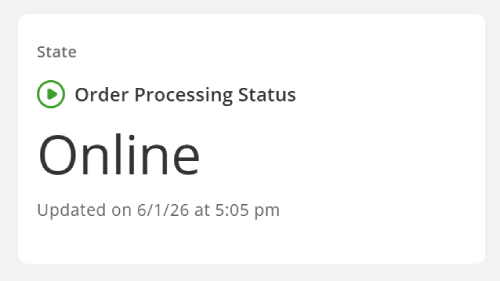
As mentioned above, in version 6.0 Beta we introduced a new States asset type which look and behave similarly to Metrics assets, but which display text instead. These State assets are now fully supported across the Catalog and Boards, and can be created from the Hub UI also. States are useful for things such as monitoring the current status of an important business system or who the top performing sales person is this month.
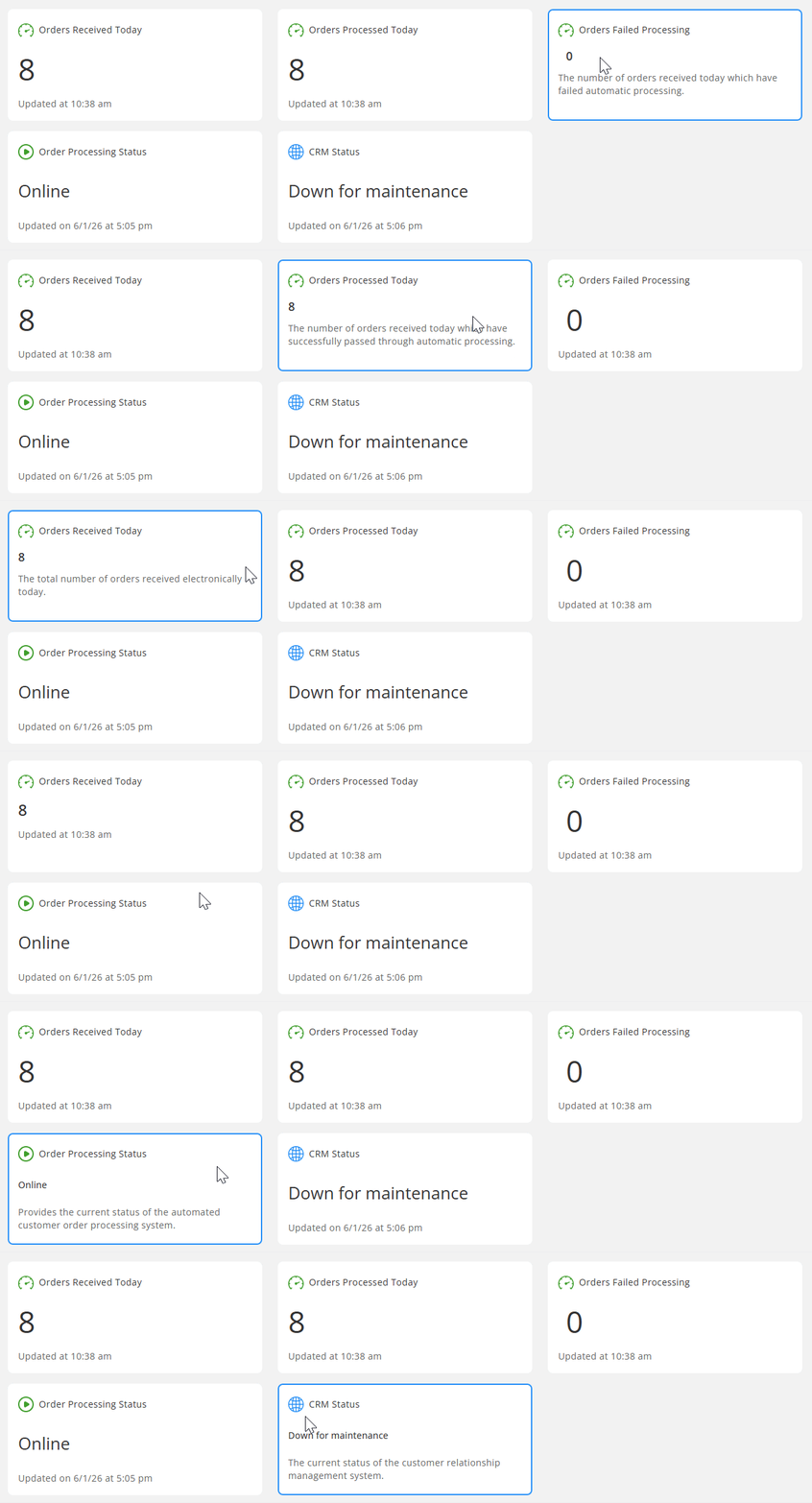
Hovering Metric or State assets now shows their description, helping users to better understand what that KPI or status actually means.
New sections and improvements for Boards
As well as the above-mentioned changes/improvements to Catalog assets which also affect how those assets are displayed on Boards, there are some other significant additions and improvements to Boards as well.
Metrics sections support adding States too
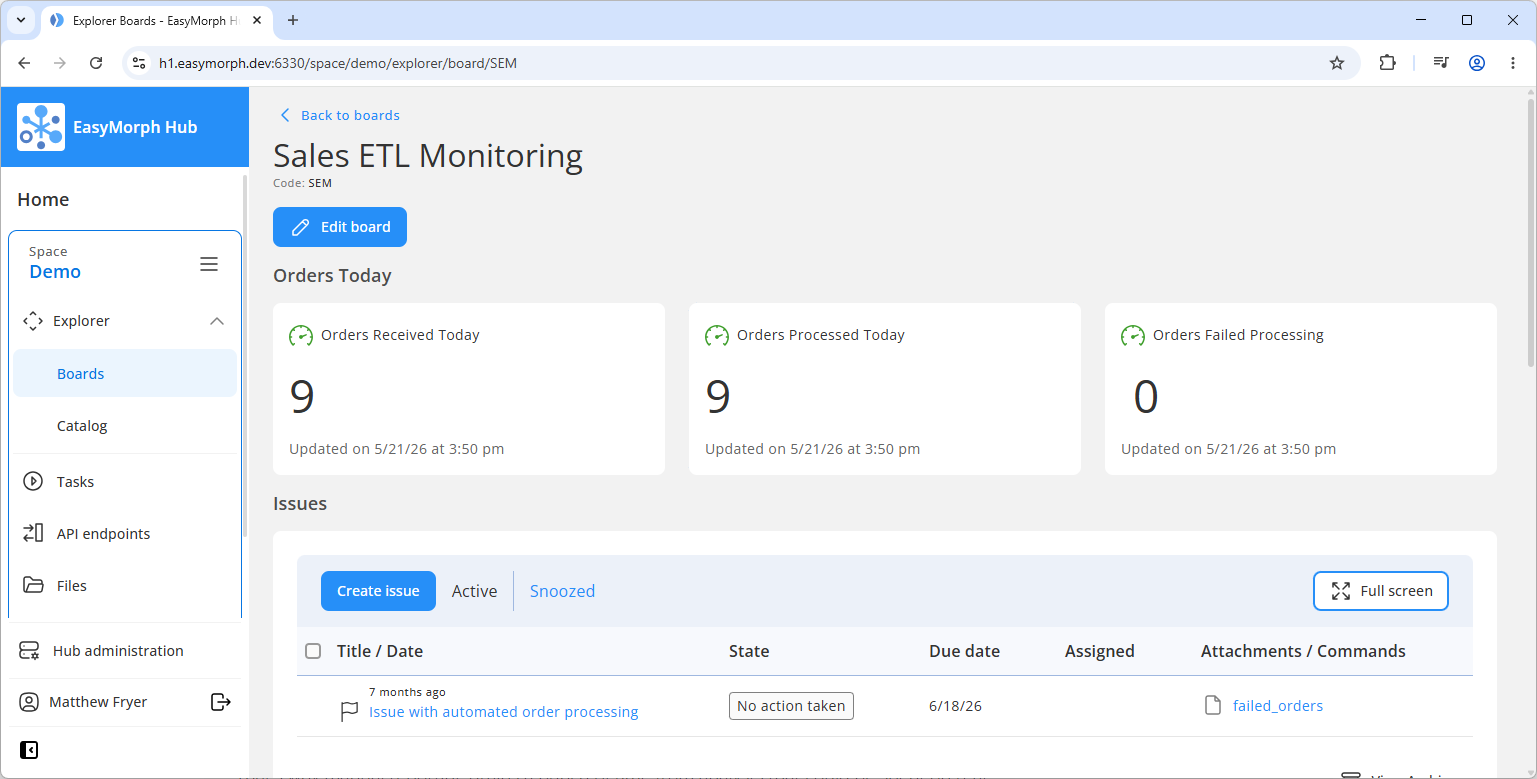
Metric sections on Boards now support adding both Metrics and States to the same section. Because of this, they’ve been reamed to Metrics and States sections.
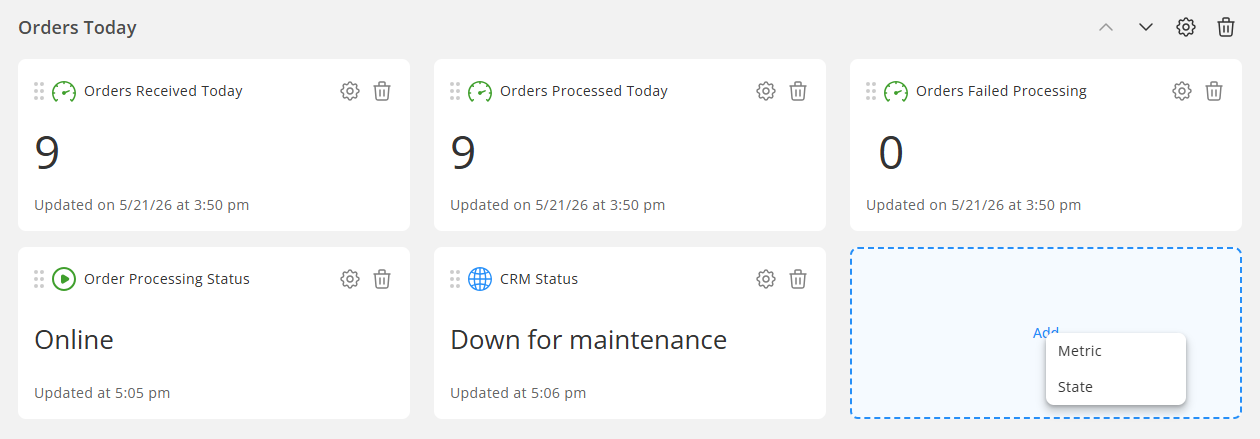
Now you can display system statuses or error codes alongside your KPIs. Don’t worry, all of your existing metrics sections in existing Boards will automatically update.
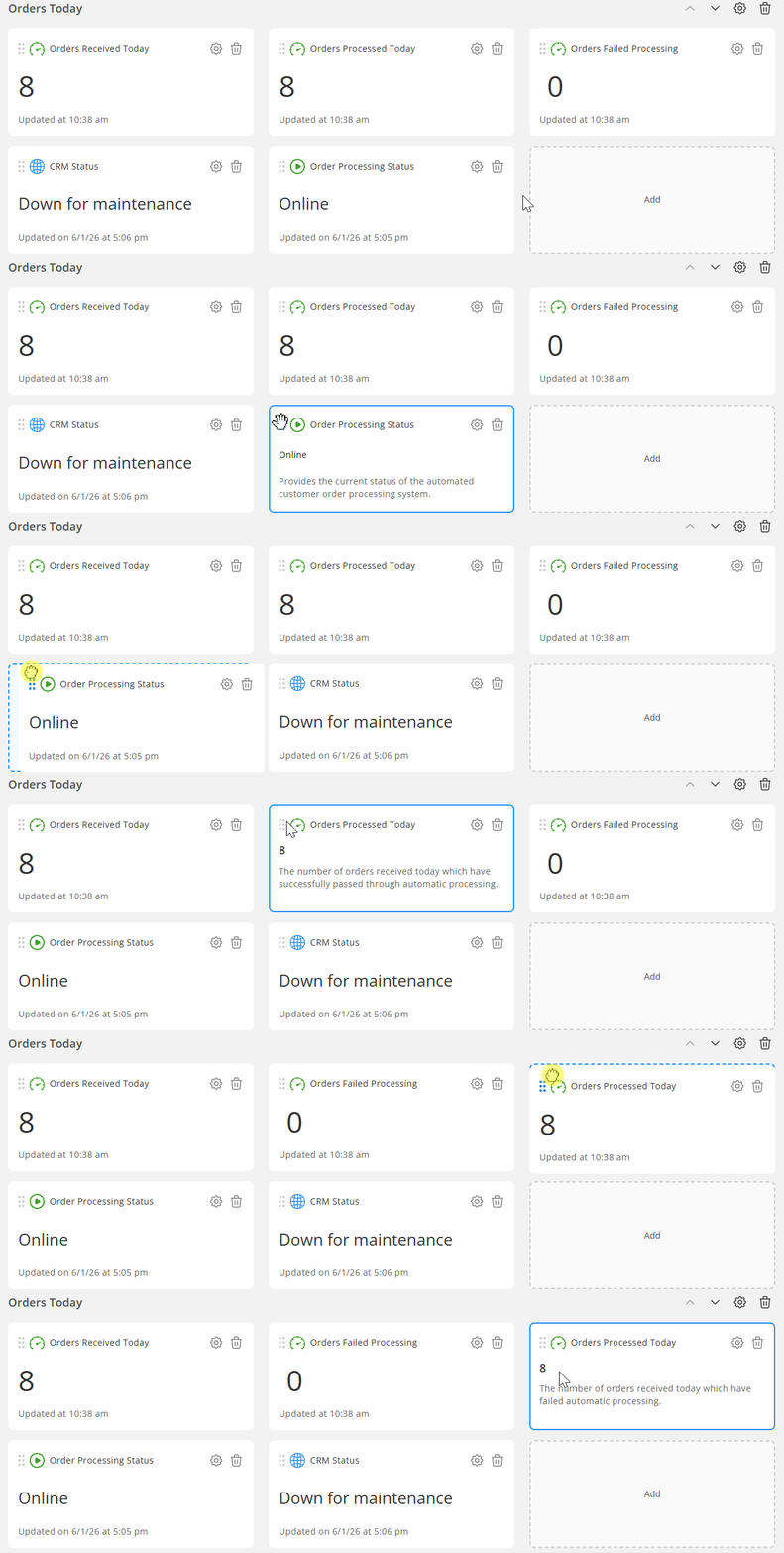
Another minor, but really useful addition to Metrics and States sections is the ability to reorder them by simply dragging and dropping them into the order you want.
Issues section improvements
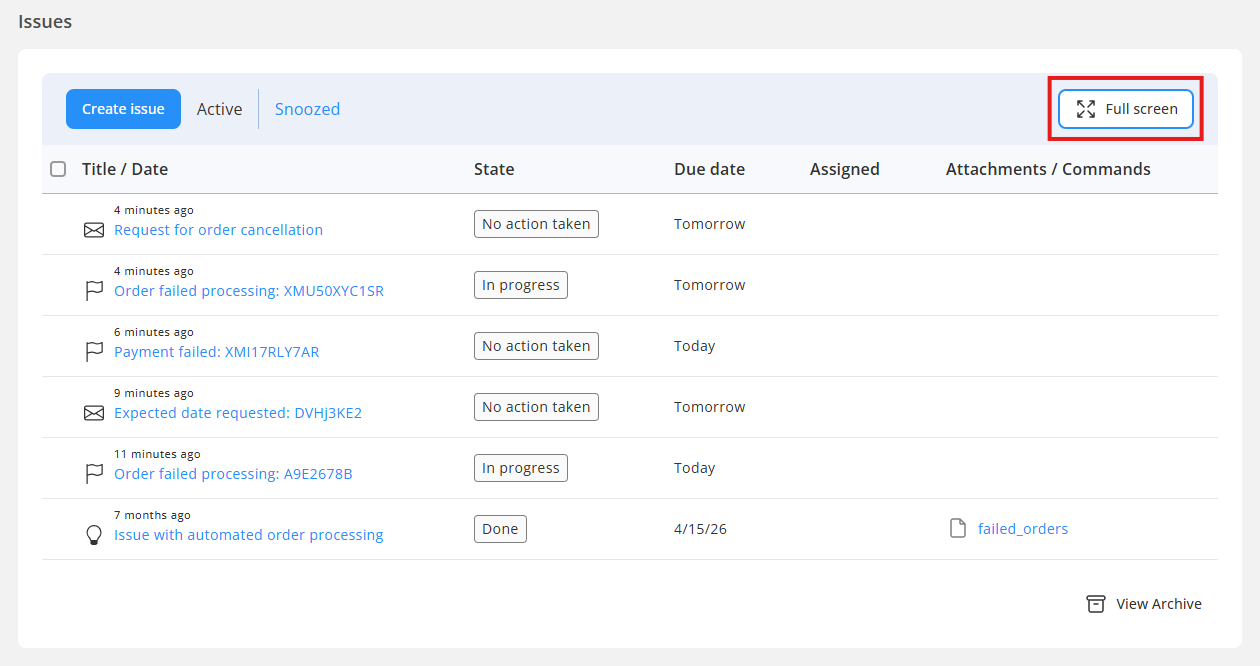
Issues sections on Boards have received a significant redesign, including the addition of some long awaited features.
An Issues section can now be expanded to full screen by clicking on the “Full screen” button at the top right of the section.
One of the most requested features for Issues is the ability to search or filter the list to make it easier when dealing with large numbers of issues. Once in full screen mode, new filter options at the top allow you to filter the list by issue type, state, due date (including date ranges) and who the Issue is assigned to.
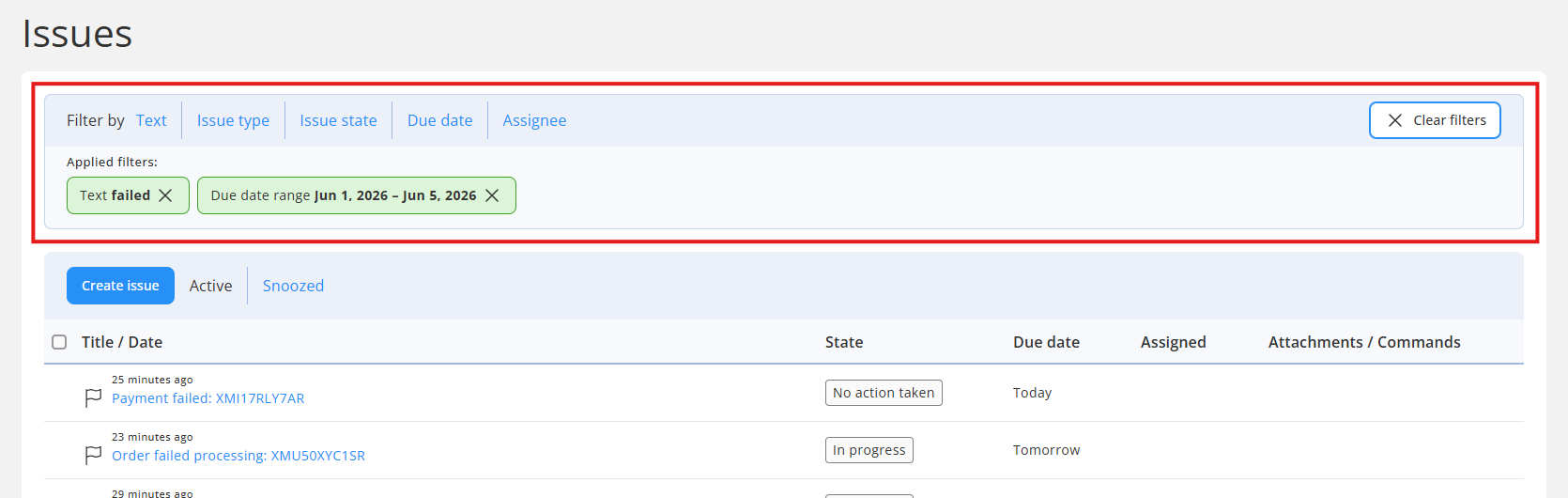
A Text filter option also allows you to search for issues which contain specific text, such as an order number or a customer name. Note that it searches in both the issue title and the description.
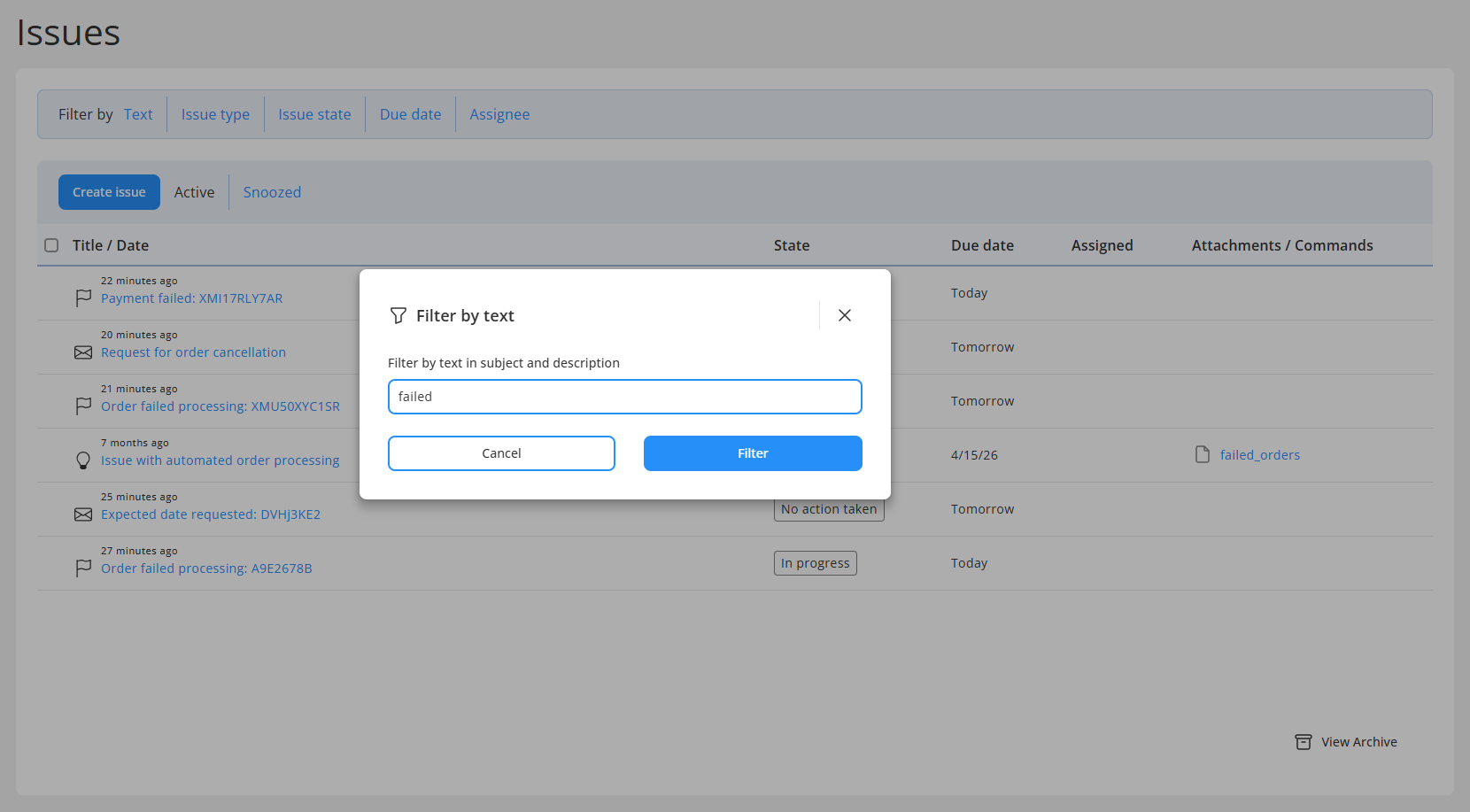
Most importantly, filters can be combined, so it is possible to filter for Issues assigned to me, which are due today and which contain the text “failed”.
A new “File manager” section
Boards have also received an entirely new File manager section. This allows you to add a section where users can upload, download and delete files directly from within a board (permissions allowing).
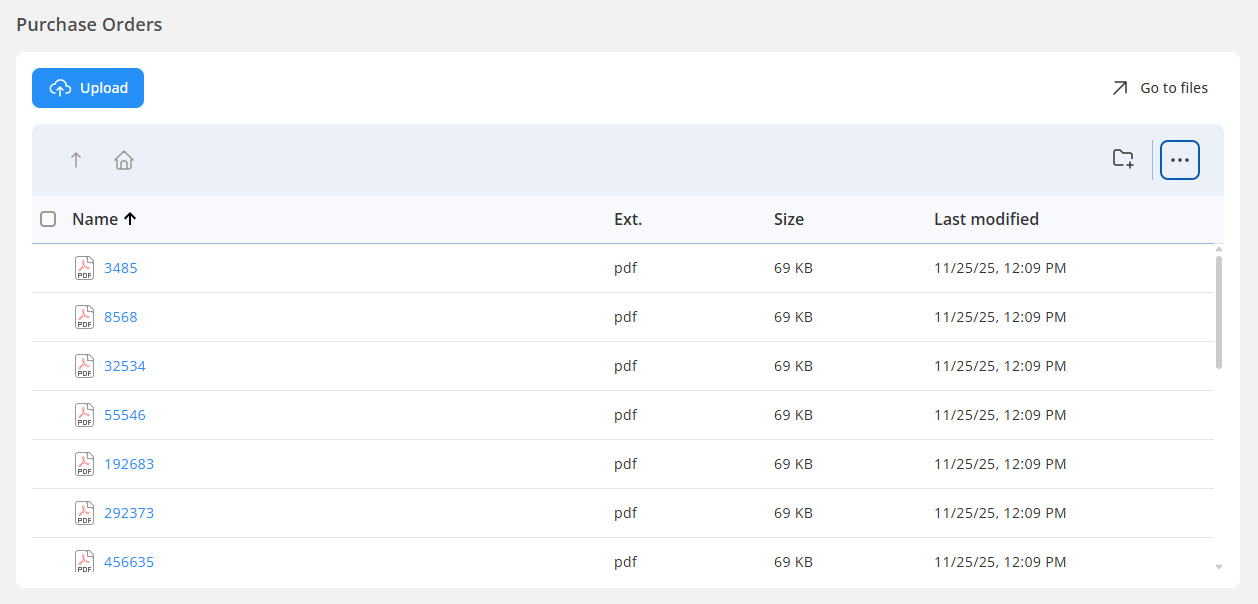
The File manager section supports both local folders on the EasyMorph Hub as well as remote folders via any compatible connector — including SharePoint, OneDrive, Google Drive, Dropbox, AWS S3, Azure Blob Storage, SFTP, and more.
This makes Boards a very real alternative to using Microsoft SharePoint. I can upload a data file, trigger a task to process it and monitor the status or any resulting issues — all without leaving a board.
Connectors on the Hub
Every Space on an EasyMorph Hub has a connector repository, where connectors to file storage, business systems, databases and other 3rd party systems can be stored and used by workflows. Up until now, these connectors could only be viewed and managed from within EasyMorph Desktop when it is connected to the Hub.
In version 6.0.1, we’ve added a new Connectors feature to the Hub, to allow you to view, and most importantly audit the connectors within the space.
Firstly, you need to turn the feature on in the Space features within the Hub administration options.
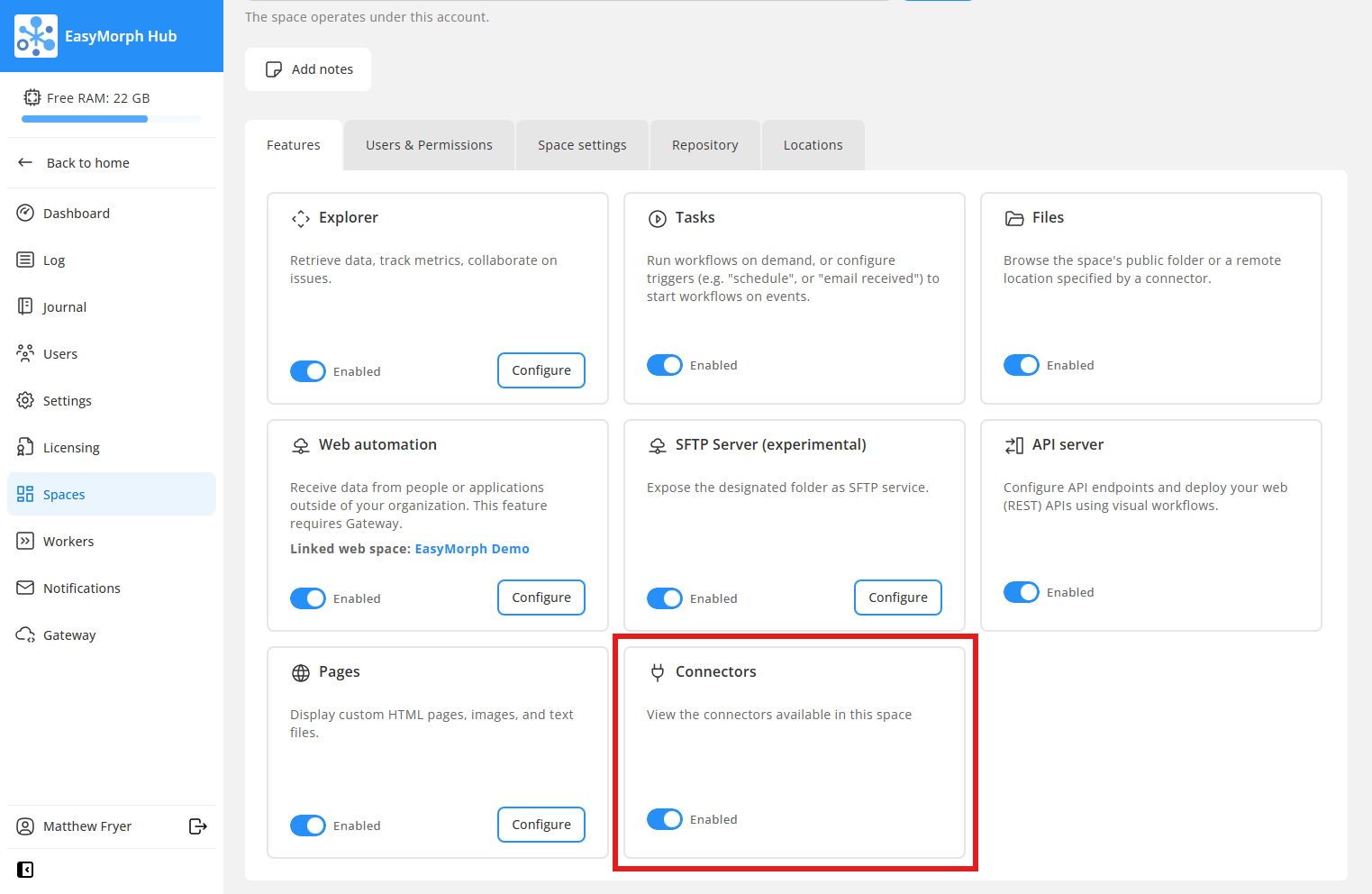
When enabled, a Connectors option appears in the left-hand navigation bar and clicking it shows all of the connectors configured in the Space’s connector repository.
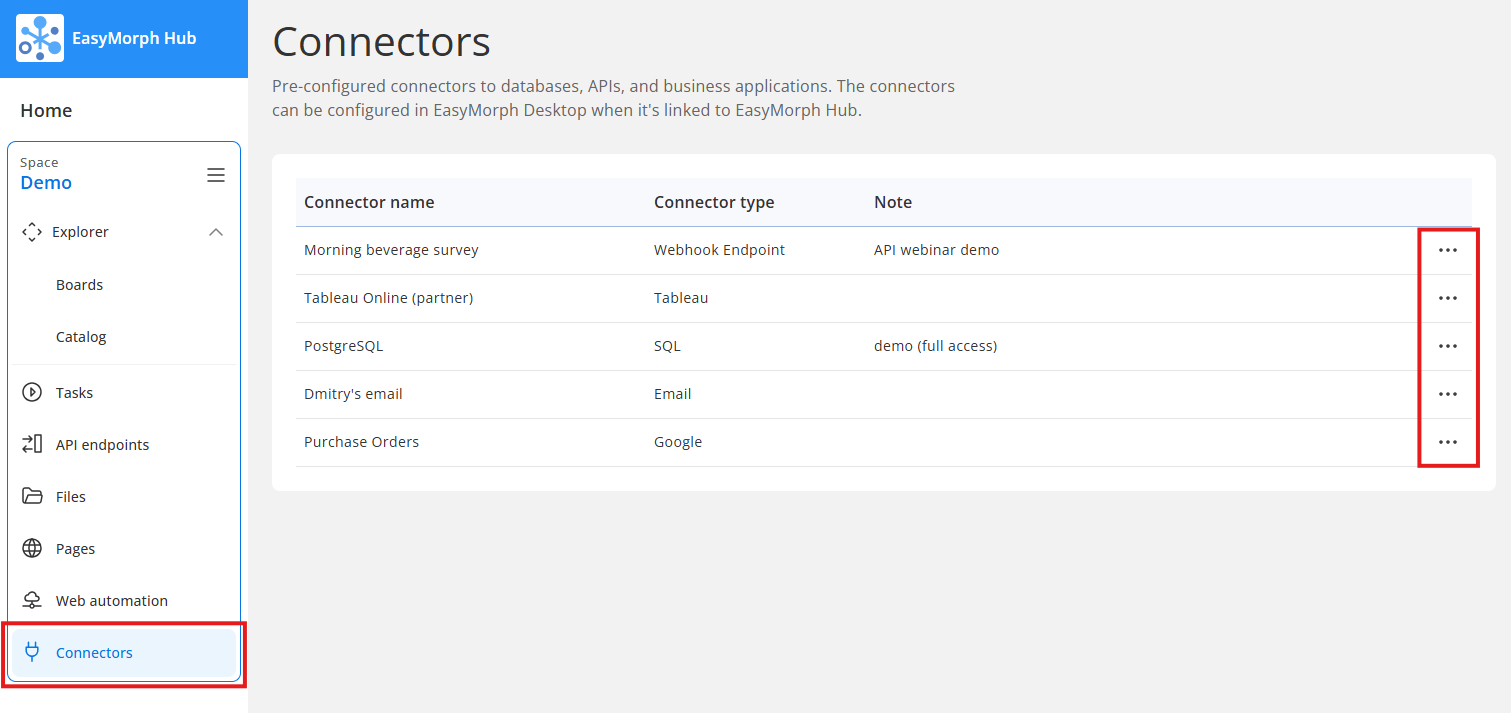
Clicking on the 3 dots to the right of each connector in the list shows a menu allowing you to “Find uses”. Clicking this option will show all of the Tasks, Triggers, Web tasks, Board sections and API automations which use the connector. This makes it much simpler to audit all of the items using a connector and therefore might be affected if you need to update or remove it.
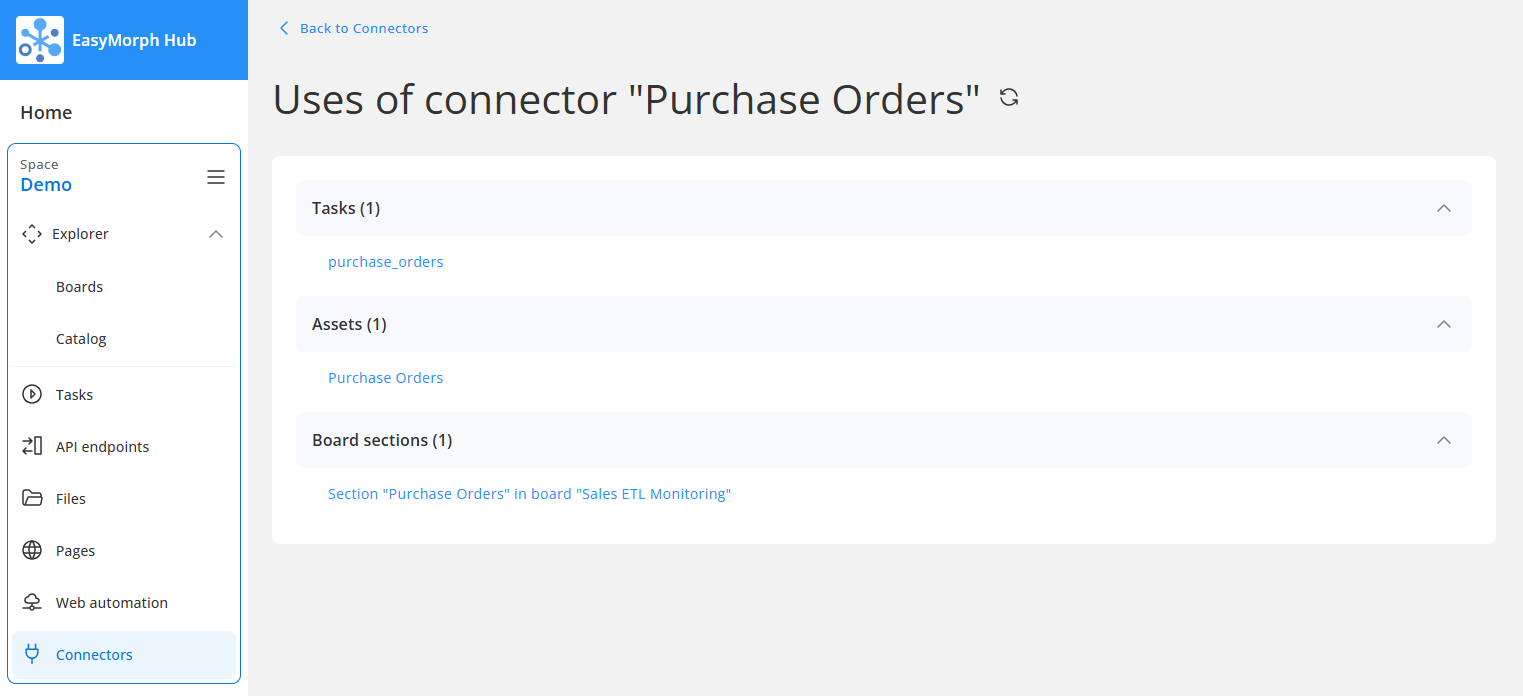
In a future version, we’ll be adding the ability to create user-specific connectors, which have centrally configured settings but which require each user to authenticate using their own credentials. For example, IT can create an Email connector, configuring technical aspects (e.g. the server address, port, etc) and then each user will be able to simply enter their own email address and password to be able to connect a workflow to their own inbox.
EasyMorph Desktop
EasyMorph Desktop has also received some improvements and tweaks, the most notable of which is a new Use connector button which has been added to the toolbar of the Main tab.
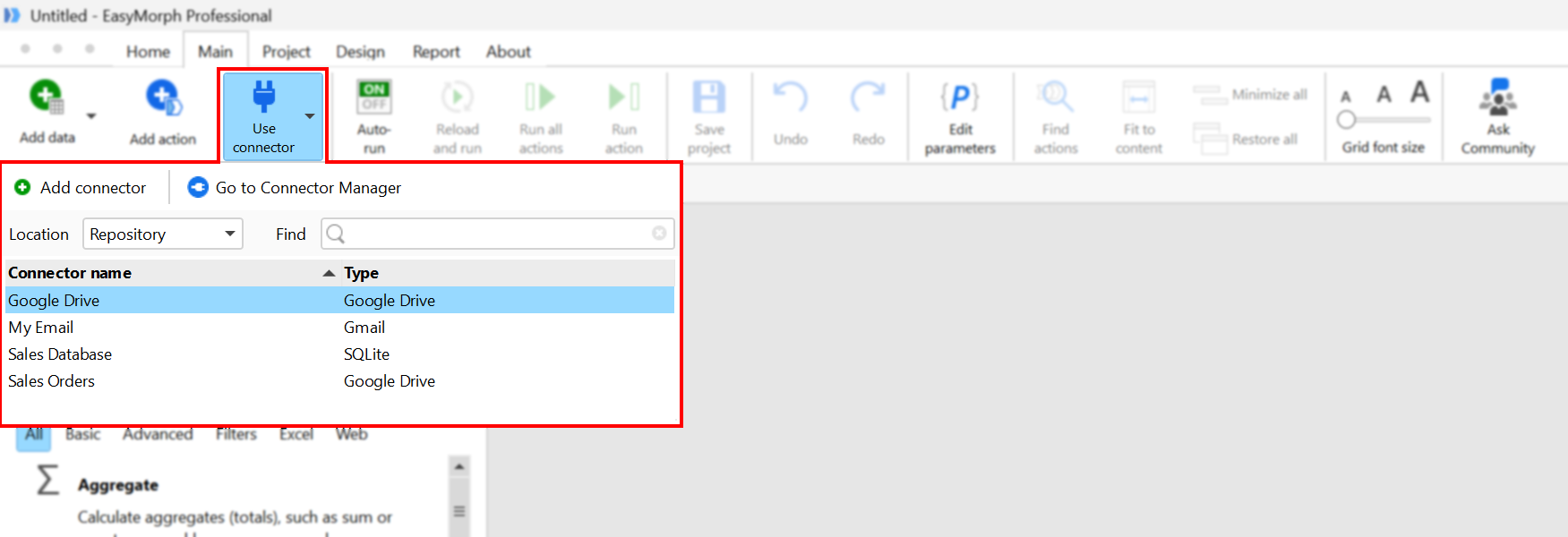
Clicking on the button displays a popup showing the configured connectors as well as options to add new connectors or manage existing ones — saving you from having to navigate away from your workflow to the connector manager.
If you select one of the connectors in the popup, EasyMorph will show a list of capabilities which are supported by that database or business system and will guide you through adding the relevant action and configuring it as needed.
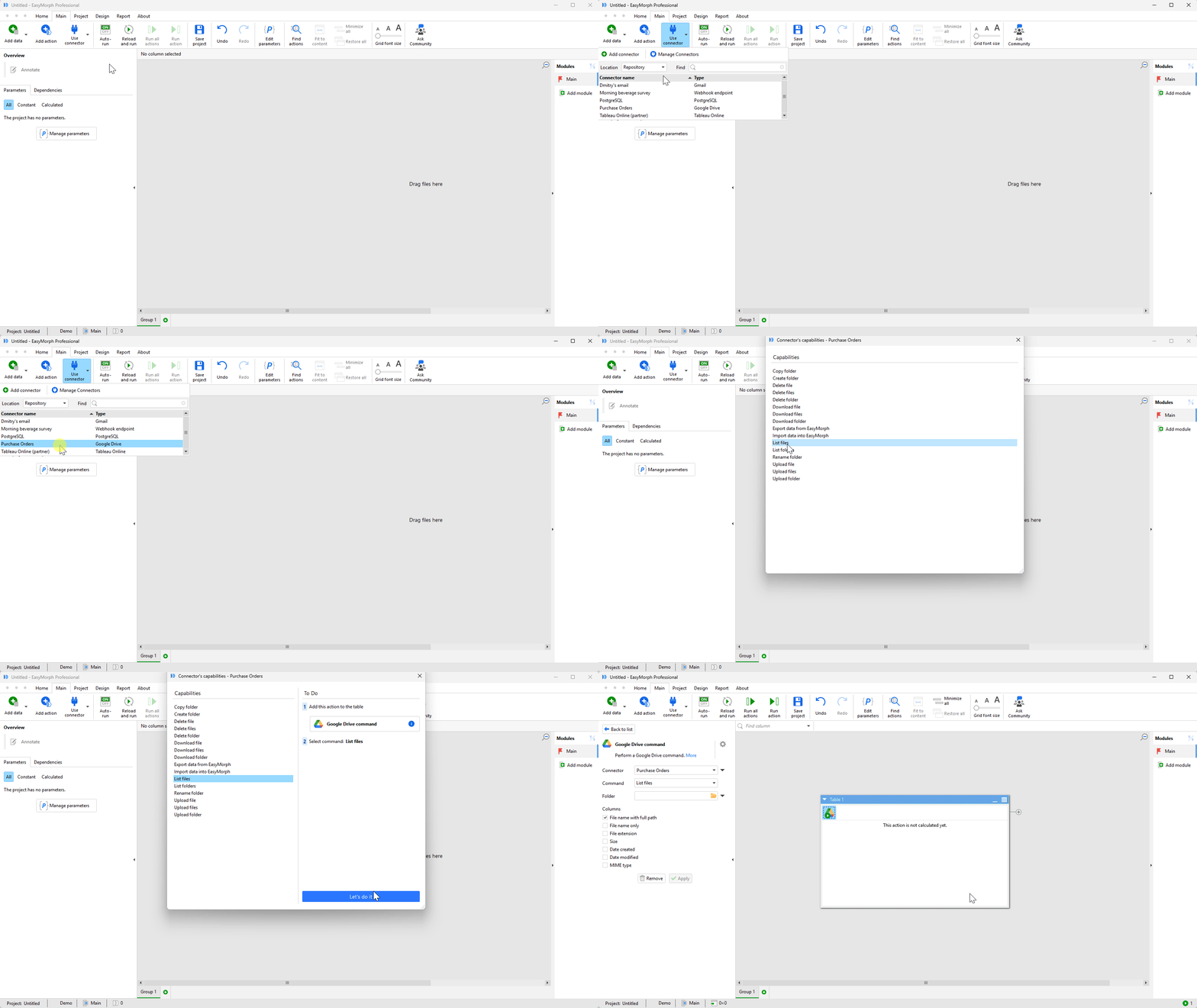
EasyMorph workflows aren’t just about preparing data and so this new feature makes it easier to begin or continue a workflow using an automation action, without having to find the right one amongst the 180+ available.
There are a few other more minor improvements to EasyMorph Desktop, including:
- The Start tab has been renamed to Home.
- Undo/redo now also covers chart editing in the Workflow Editor.
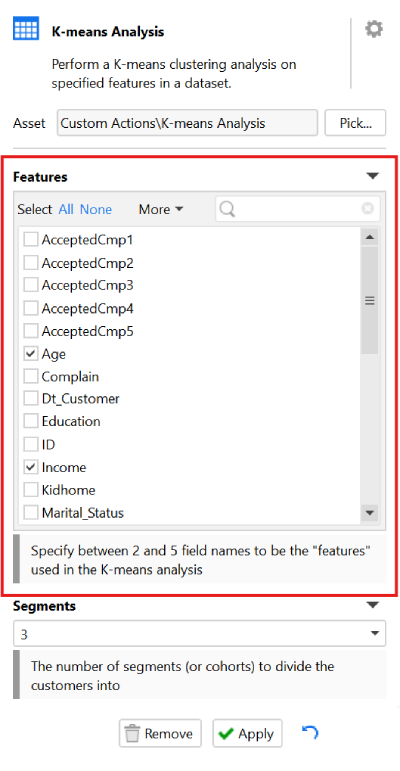
- A new Column selector parameter type, intended specifically for building custom action workflows. It presents a list of fields in the dataset passed to the workflow and prompts the user to select one or more.
Python Tasks in EasyMorph Launcher
Not to be left out, EasyMorph Launcher — which ships with EasyMorph Desktop — has also received some love, with support for using Python scripts as tasks.
Clicking the dropdown arrow next to the "New task" button shows a new Python task option. Unsurprisingly, instead of picking an EasyMorph project (.morph file) you instead select a Python script file to create a task for. You can even specify parameters which will be made available to the Python script via the "easymorph" python module, just like when using the Call Python action in a workflow.
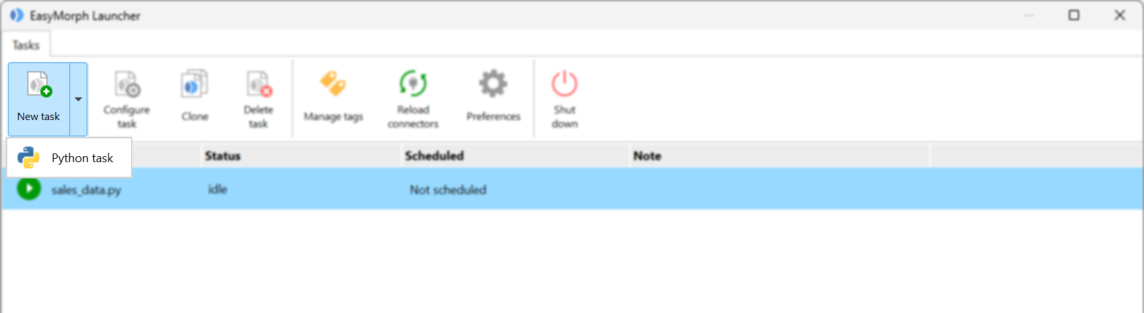
Once created, you can run the Python task manually whenever needed, or you can schedule it to run automatically, just like an EasyMorph workflow task.
The possible use cases are almost endless but as an example, I’ve set up the same Python script as 3 separate tasks, each of which has different parameter values set. Now not only can I run them with a simple click rather than having to use the command line, I also don’t have to remember and type in the different arguments each time.
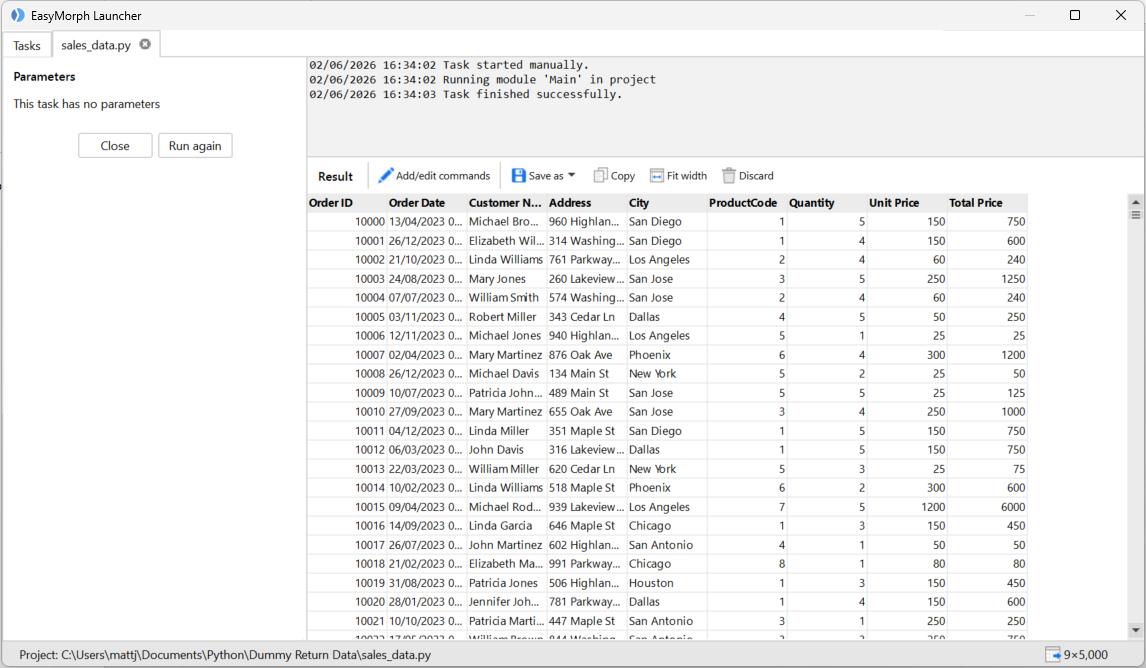
If the Python script returns a dataset, then Launcher will let me view and save the data.
In the future we may add support for other task types in Launcher such as for running PowerShell scripts or programs with command line arguments. If this is something you’d like to see, hop on over to the EasyMorph Community and let us know.
What's Coming Next
As always, we have a long list of new features and improvements planned for upcoming releases. Just a few coming soon are:
- The ability to expose pre-computed dataset assets as OData sources for integration with other tools and systems.
- A new Queries feature allowing you to run custom SQL queries, download the resulting data or view it in Analysis View or Playground.
- Hub homepage customization.
- More new task triggers including a OneDrive trigger.
- Support for OpenID Connect (OIDC) as an external user identity provider.
- A new Connector selector parameter type.
Download EasyMorph Hub and EasyMorph Desktop version 6.0.1 now!