The beta release of EasyMorph version 6.0 just landed, let's take a look at the big changes and new features this major release brings.
This is a big one with a lot of changes and major new features for both EasyMorph Hub and EasyMorph Desktop - including a completely redesigned Hub UI, custom actions, new task triggers, and State assets.
Note: This is a Beta version, and as such, is NOT intended for production use. It is made available for you to test, experiment with
and provide feedback on.
Some of the features and changes described below may not be 100% functional in the currently available Beta version. They will be fully available in the final
release.
Introducing EasyMorph Hub
Before diving into the functionality, one important change is that EasyMorph Server has been renamed to EasyMorph Hub. Don't worry — all of the features and functionality remain exactly the same. Only the name has changed.

It will likely take us some time to fully transition to this new name, so expect to still see "EasyMorph Server" appearing in some places for a while.
EasyMorph Hub User Interface
EasyMorph Hub's user interface (UI) has had a complete redesign, giving it a modern and clean look and feel.
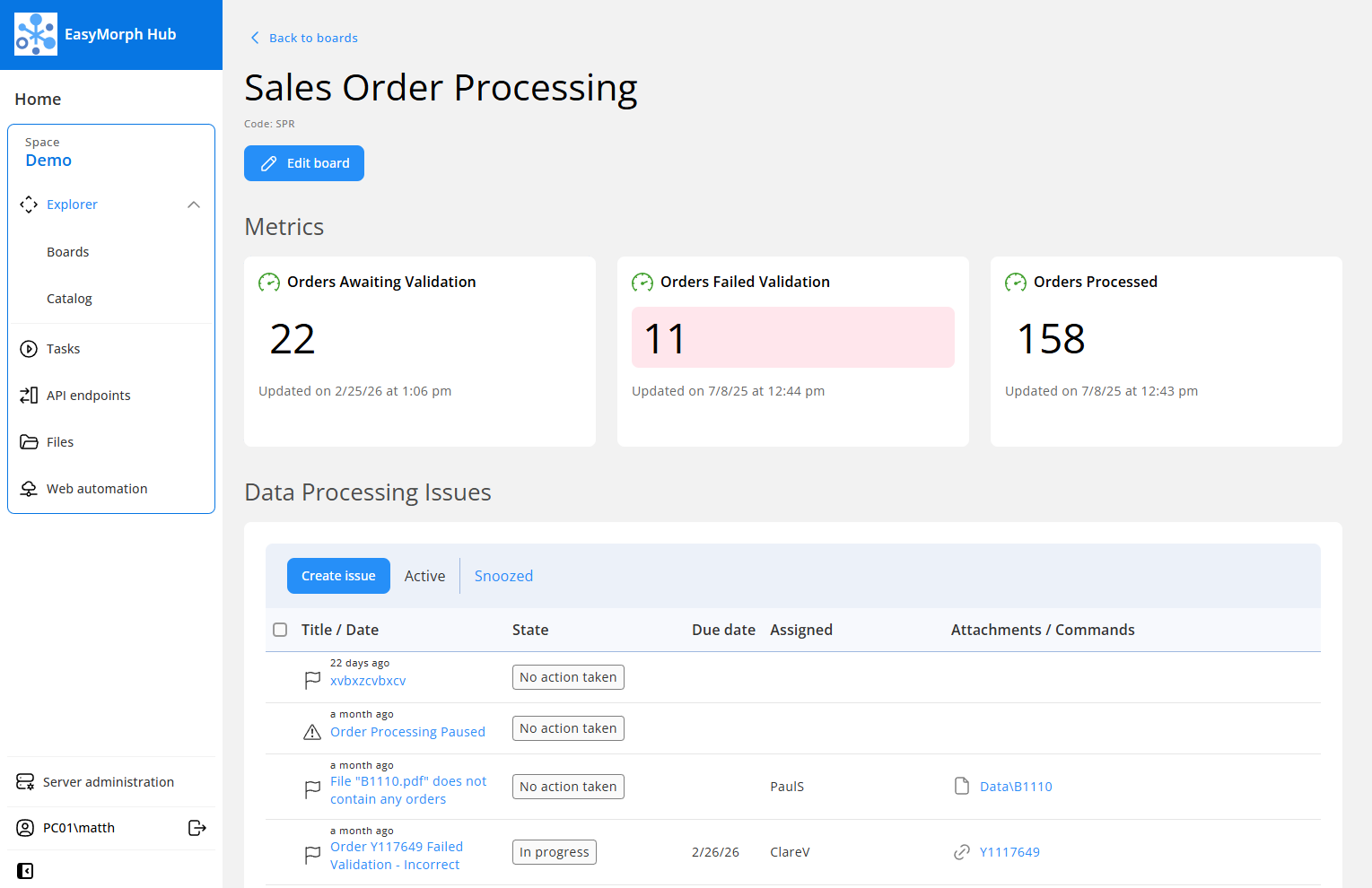
There are a couple of important navigation improvements to be aware of. Changing Space has moved from the top of the screen to the left-hand menu bar. Your current Space is displayed at the top of the menu, and clicking on the "…" button next to it opens a dropdown allowing you to switch to a different Space.
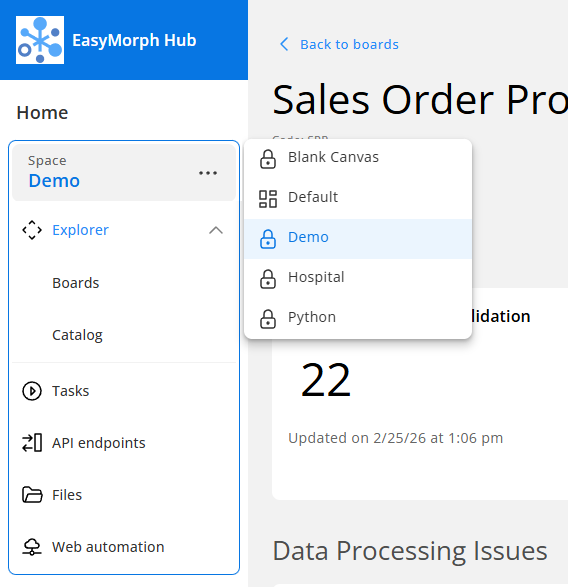
Switching between Boards and the Catalog has also been made simpler. Both are now linked directly in the left-hand navigation under "Explorer".
One other notable change is that "Directories" within the Catalog have been renamed to "Collections". Calling them directories caused confusion since they don't actually represent file system directories — they are simply a way to organise your Catalog assets into groups.
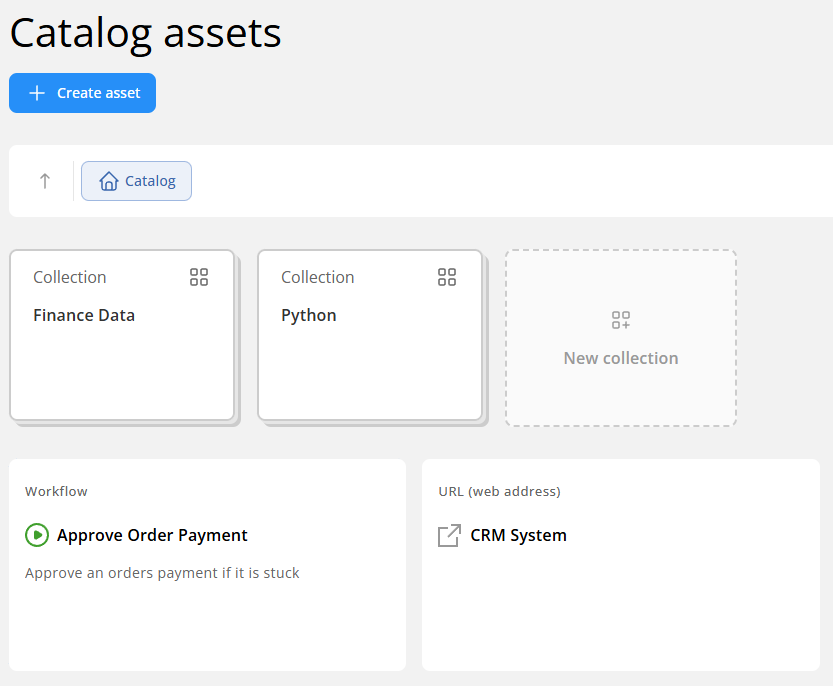
In a future release we'll introduce the ability to rebrand the UI to match your organization's branding and to customize it to better suit your team's needs.
Explorer Assets as Custom Actions
One of the most requested features from customers has been the ability to create custom actions to use in EasyMorph Desktop workflows. In version 6.0, this is now possible using EasyMorph Hub Catalog assets.
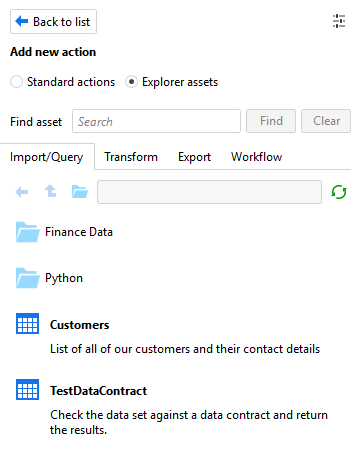
This is one of my favorite new features we've added to EasyMorph! It's significant for many reasons:
- Customizability — Add actions to cater for specific business logic which is unique to your industry or organization.
- Efficiency — Makes it much simpler to define reusable workflow sections which can be added and reused in as many workflows as needed.
- Extensibility — Extend the capabilities of EasyMorph by creating actions to do something which there isn't an existing action for.
- Collaboration — Improve collaboration between IT/data and business teams by providing a simple solution for technical teams to expose complex functionality to less technical users.
- Self-service — Makes it much easier for less technical or experienced EasyMorph users to perform complex data transformations without needing to understand how they work.
Note: Because custom actions are EasyMorph Hub Catalog assets, they can only be used if you connect EasyMorph Desktop to an EasyMorph Hub instance.
The possible use cases for custom actions are almost endless. Just a few examples:
- Getting data from systems that don't provide access in standardized ways, such as ODBC or those supported natively by EasyMorph.
- Creating actions to meet your specific business needs and processes, such as formatting product codes a certain way, standardizing address data, or validating data against business rules.
- Integrating AI to parse text from an image file or PDF, or to translate data into a single standardized language.
- Wrapping a Python script into an action to add advanced Machine Learning (ML), predictive analytics, or data science capabilities.
- Creating actions to validate data and check for data quality problems — you could even test data against a data contract.
If you can build an EasyMorph workflow to do it, then you can use it as a custom action in other workflows.
There are 4 types of custom actions, each with slightly different use cases:
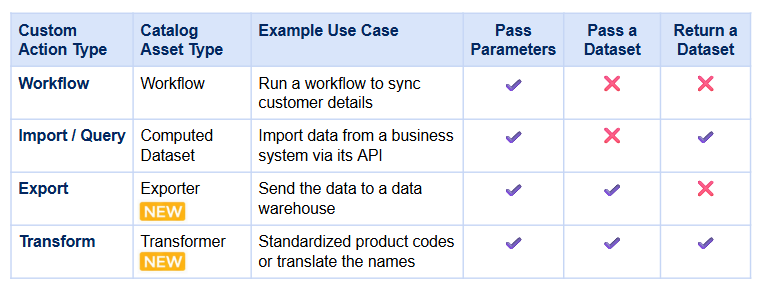
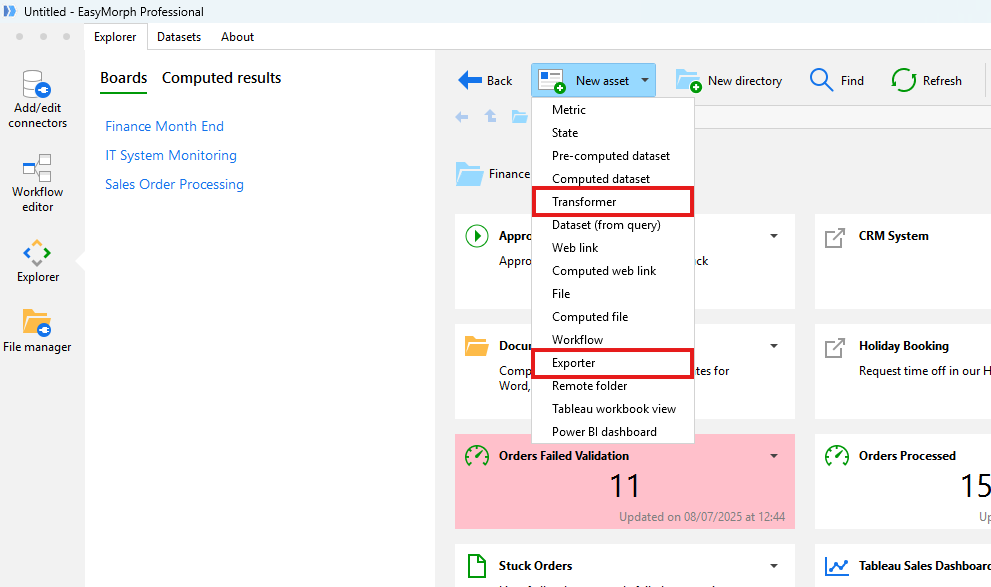
As you can see, Export and Transform custom actions rely on two new Catalog asset types — Exporter and Transformer. In the EasyMorph Desktop client, these can be created from the "New asset" dropdown in the Catalog.
To add a Catalog asset as a custom action to your workflow, when adding an action there is a new toggle option to switch from Standard actions to Explorer assets.
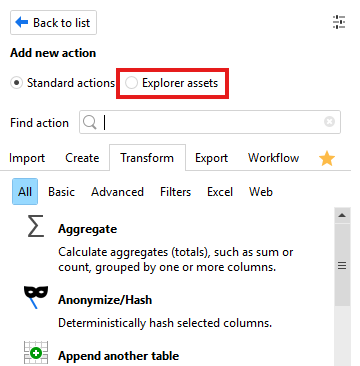
Note: Custom actions are always executed on EasyMorph Hub, even if used in EasyMorph Desktop. This means they may run more slowly than standard actions since the data must be sent to the Hub to be processed.
New Task Triggers
As with every recent release, version 6.0 introduces several new Triggers for Tasks in EasyMorph Hub.
SharePoint Triggers
Not one but two new SharePoint triggers have been added, allowing Tasks to be run on changes to both SharePoint lists and folders.
Note: Both are Cloud triggers and require EasyMorph Gateway to work. If you have EasyMorph Hub Team or Enterprise, Gateway is already included.
The SharePoint Folder trigger works like the existing File event or Dropbox folder triggers, monitoring a specific folder in SharePoint and firing when files are added or modified.
The SharePoint List trigger is similar but monitors a SharePoint List instead. When rows are added, edited, or removed, the trigger fires and runs the associated Task.
Web Response Trigger
The third new trigger added in version 6.0 is the Web Response trigger. In simple terms, it monitors a specified web address at a defined interval and fires when a change matching your configured conditions is detected.
The trigger has a large number of modes and settings, meaning it can be used for lots of different scenarios, for example:
- Monitoring whether or not a webpage has changed and running a workflow to scrape new data from it if it has.
- Checking whether the response from a specific web API endpoint has changed, indicating that a data refresh is needed.
- Monitoring the availability of a specific web application or service and notifying someone if it is down.
The Web Response trigger supports the following modes:
- Web response status code changed (e.g. "200 success" became "404 not found" or "500 internal server error")
- Web server hasn't responded after timeout
- Web response body is or is not empty
- Web response body changed in any way
- Web response body JSON changed:
- JSON path is or is not present
- JSON path value changed
- Web response body XML changed:
- XML path is or is not present
- XML path value changed
- Web response body text contains or doesn't contain a specific string
- Web response header field value changed
Tip: Combining these new triggers with the "Skip if unchanged" action introduced in the last release, you can easily identify exactly which rows have changed and process only those.
New Catalog Asset Types
As mentioned above, version 6.0 introduces 2 new asset types — Transformer and Exporter — which provide support for custom actions. But these aren't the only new Catalog asset types; we've also added one more.
State Assets
The eagle-eyed amongst you may have spotted "State" as an asset type in the images above. State assets are very similar to Metric assets, but instead of storing a numeric value (like a KPI or count), they store a text value. For example, you might use a State asset to display the current status of a system, the name of the top-performing salesperson, or an upcoming deadline date.

Like Metric assets, State assets store their value in a Shared memory key and can also have conditional highlighting rules — so you can color the tile green when a system is "online" and red when it is "offline".
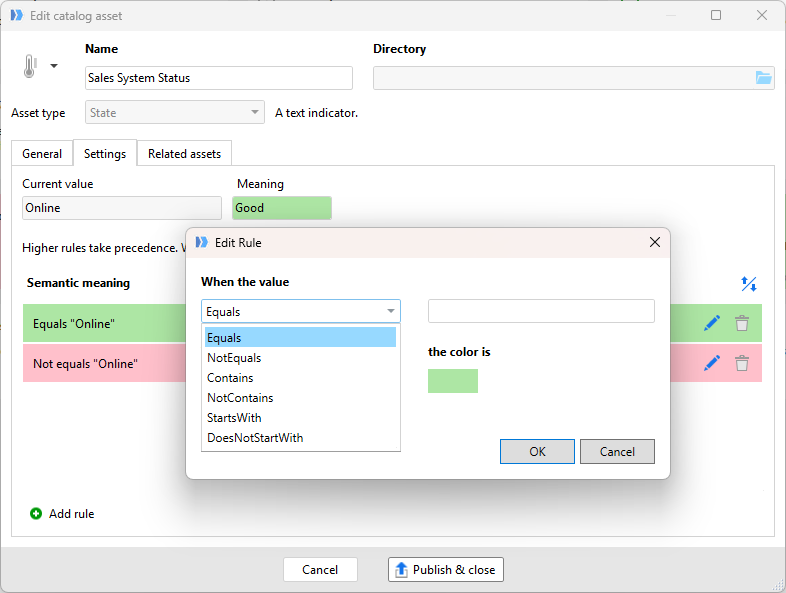
This is a much-requested feature with lots of possible uses, such as:
- Adding the finance system status to your finance team's Board.
- Displaying the top-performing salesperson on your sales team's Board.
- Reminding everyone of the finance month-end cut-off date.
Tables Now Support 1 Billion Rows
In version 6.0 we've doubled the amount of data a single table can hold. Each table in your workflow can now contain up to 1 billion rows — up from the previous limit of 500 million.
Performance
There has been a lot of work behind the scenes to improve EasyMorph in ways that might not be immediately obvious. Many of these improvements are related to memory usage and will result in EasyMorph being able to handle larger datasets more efficiently.
In general, the whole application should also feel more responsive, and workflows running in EasyMorph Desktop are on average 10% to 15% faster than in the previous version.
Loading data from Excel spreadsheets has also received a huge boost and is now 2 to 3 times faster than in previous versions.
And finally, loading data from EasyMorph's own dataset files (.dset) has been optimized and should be 20% to 30% faster than before.
Temporarily Disable or Enable an Action
It has always been possible to disable an action in an EasyMorph workflow by right-clicking it and choosing "Disable". This is useful during development and testing when you want to skip an action without removing it from your workflow.
One problem that many of us have experienced is forgetting to re-enable them afterwards — especially easy to do when you disable an action in the middle of a long workflow and then run and save it, only to find later that your data is missing a step.
In version 6.0 we've introduced an option to "Disable temporarily". Just like a regular disable, the action is skipped when the workflow runs, but with one key difference.
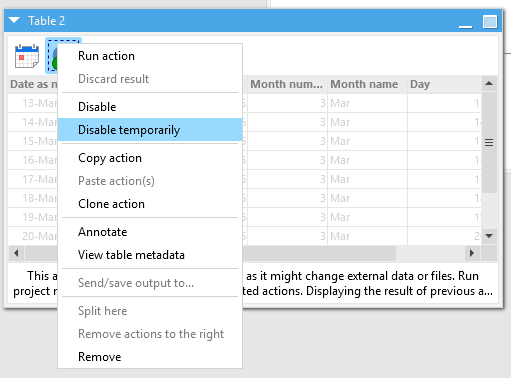
Any temporarily disabled action(s) will only remain that way until the workflow is saved and closed. They will be automatically re-enabled the next time the workflow is opened.
Tip: You can select multiple actions at the same time and disable, temporarily disable, enable, or temporarily enable them all in one go.
Export Power BI Report to PDF
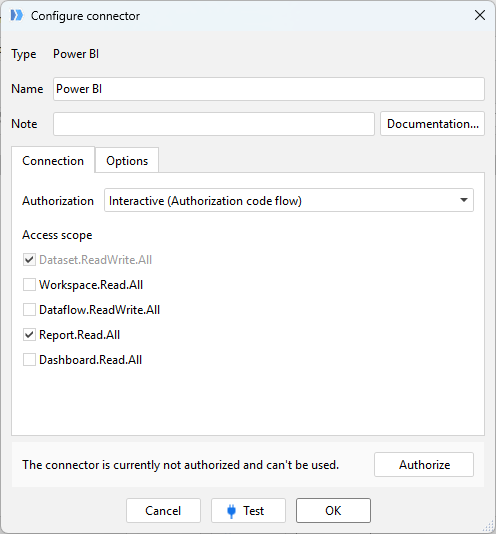
The Power BI command action has a new command to allow you to export a Power BI report to a PDF file.
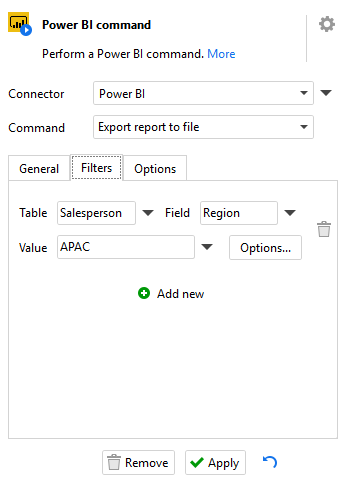
The "Export report to file" command has settings to pick which workspace to work with and which report you wish to export. You can also set filters to export only specific pages or slices of the report.
Note: To be able to export Power BI reports, the connector needs to have the Dataset.ReadWrite.All and Report.Read.All access scopes enabled.
Column Picker Improvements
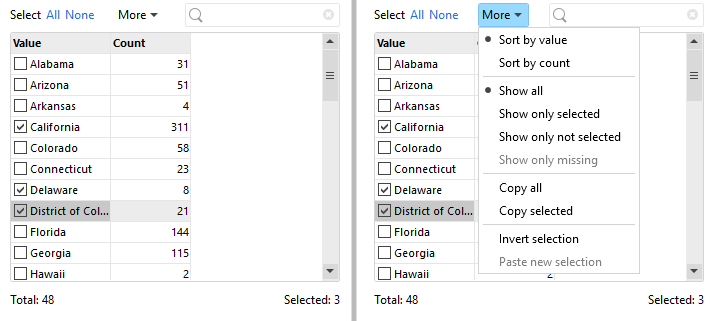
Lots of actions in EasyMorph require you to select one or more columns as you configure them. In version 6.0 we've improved the column picker in several ways:
- A column showing the distinct number of values in each column.
- The ability to sort by either the column name or the distinct values count.
- The ability to filter to only those columns that are selected or not.
- The ability to copy all or selected columns and paste them as a selection into the column picker of a different action.
- A search bar to make it easier to find specific columns in large lists.
Other Notable Changes
EasyMorph Hub
- You can now search the logs in EasyMorph Hub Monitor — useful for tracking down the causes of problems.
- File upload parameters are now fully supported in Explorer Catalog.
EasyMorph Desktop
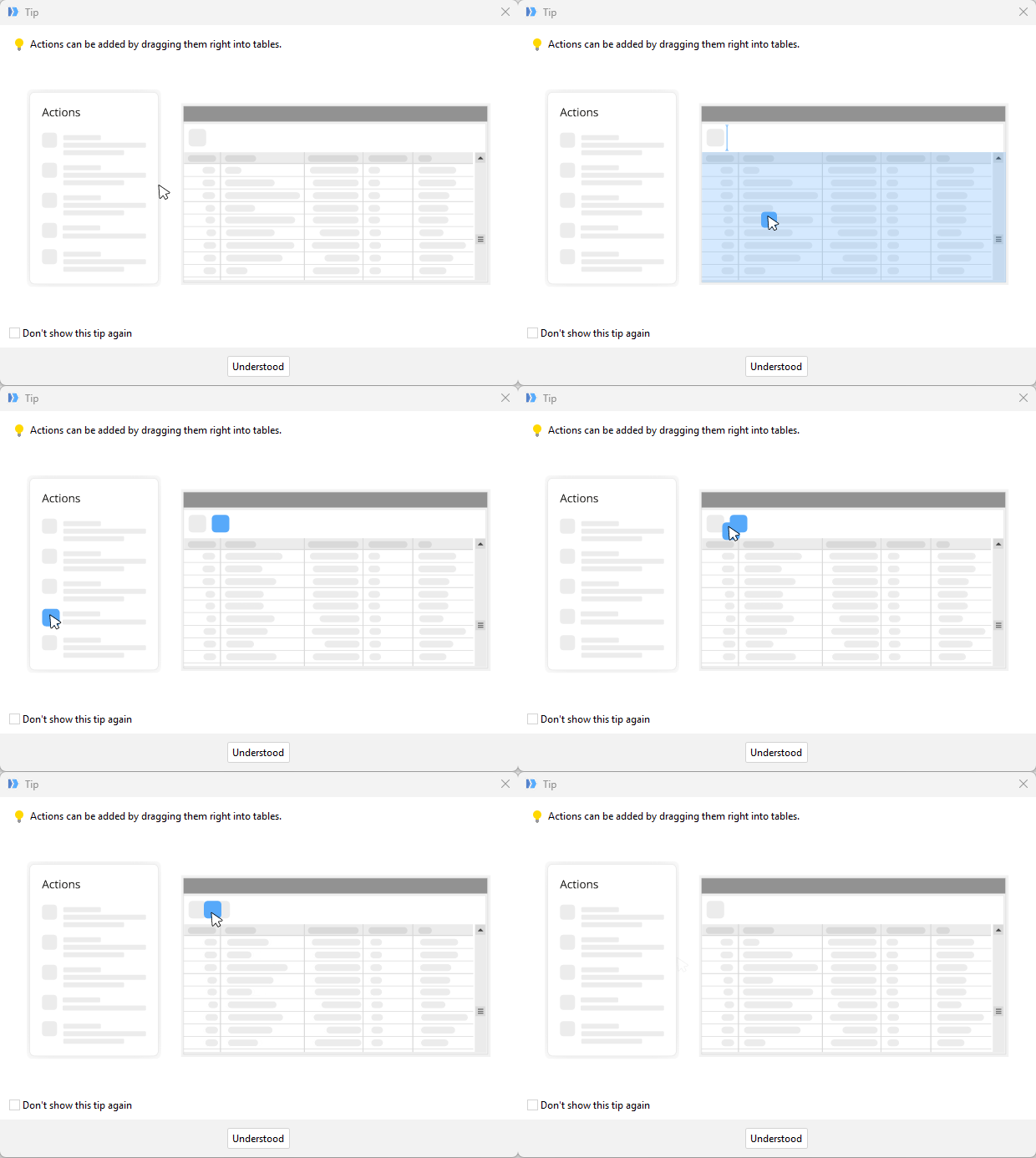
- EasyMorph Desktop will now display little hints and tips as popups as you use it, helping newer users discover features they might otherwise miss.
- Desktop now supports MS Entra ID login when establishing a connection to EasyMorph Hub.
- The Concatenate text action has a new option to concatenate columns together rather than rows — useful for combining text from multiple columns into one.
- Charts and cross-tables now have contextual menus accessible directly in the workflow view by right-clicking them, with options to edit, copy, or delete.
- The Azure Blob storage connector now supports authenticating using Shared Access Signature (SAS) tokens.
What's Coming Soon
As always, we have a long list of new features and improvements planned for upcoming releases. Just a few coming soon are:
- Lots more improvements and tweaks to the Hub UI - e.g., search for issues, navigation to related assets.
- New features for Hub Boards, including support for the new State assets.
- A new board section: File Manager.
- Support for Azure AI within the Ask AI action.
- Support for Python scripts in Launcher tasks.
We've lots of big new features also planned for 2026 — My favorite is Playground, which will allow users to build simple EasyMorph workflows to manipulate and transform data directly in the web browser - stay tuned!