If you deal with transforming data, even occasionally, it is impossible to avoid joins - when two tables are merged into one. Whether we like it or not, the data involved frequently comes from multiple sources and needs to be joined (merged) first before you can do anything meaningful with it. No matter if you deal with databases, spreadsheets, or data APIs.
But joins can and do go wrong all the time. Damage from a wrong join can range from an annoyance to a disaster. In any case, you don't want that to happen.
Here are the 5 most frequent causes why a join can go wrong (from my experience), and suggested remedies:
1. Missing matches
Probably the most obvious reason for a wrong join is incomplete matching. It happens when one of the merged tables doesn't have all the keys to match the keys in the other table. Of course, there are cases when it's acceptable behavior. But when it's not, and all keys are expected to match, a missing key can lead to a wrong result:
- In case of an inner join, the result will lack rows.
- In case of a left or outer join, the result will have nulls for rows with unmatched keys.
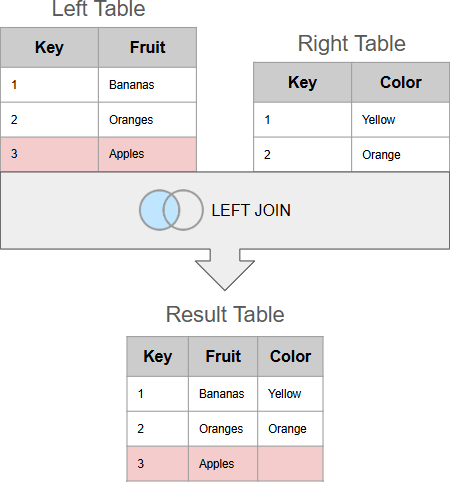
Detection: For left or inner joins, check for nulls or blank values in the results table. For inner joins, make sure that the result table doesn't miss rows.
Remedy: Populate any missing records within the source table(s).
2. Wrong join mode
Sometimes a join can go wrong simply because you've chosen a wrong join mode. Typically, three join modes are recognized (excluding semi-joins):
- Inner join
- Left/right (outer) join
- Full outer join
For instance, if you do an inner join in a case where a left join is required, then in case of missing matches (described above) some rows will be dropped from the result table.
Or, if you do a full join instead of a left join, then the opposite can happen - the result table can have extra rows as it will include not matched keys from the both tables. This is especially easy to do when performing joins in SQL. Simply forgetting the word “LEFT” when writing “LEFT JOIN” will result in an accidental full outer join.
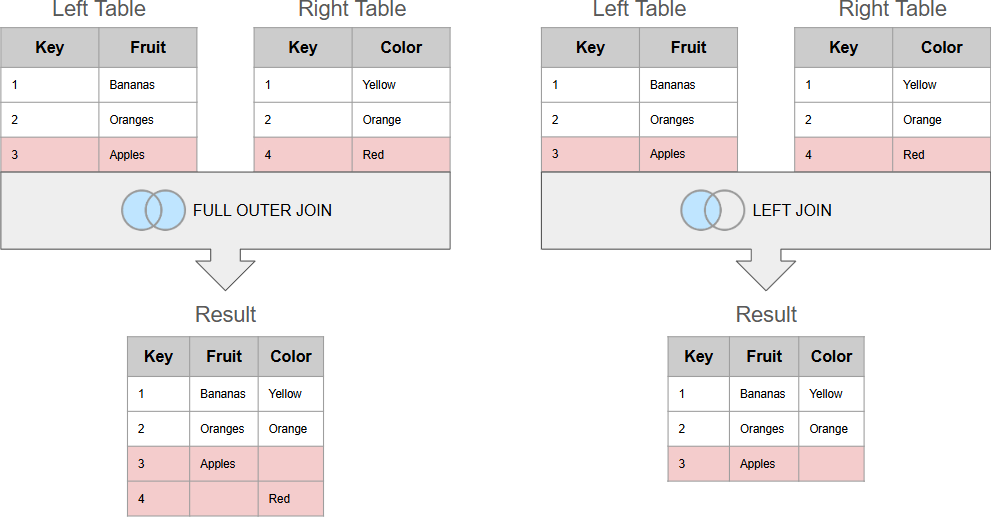
Detection: Check the number of rows in the result table match your expectations. If there are too many or too few - especially compared to your source tables - you may be using the wrong join mode.
Remedy: Learn the different join modes and how each is expected to behave.
3. Duplicate keys
If you do a join and one table contains duplicate matches, then the result will also have duplicates. This may or may not be the desired behavior. For instance, when you do a left join to append new columns, if the left table contains duplicate matches (not by accident), but the right table doesn't - the result will contain the same number of rows as in the left (main) table which is the expected behavior.
However, if the left table doesn't contain duplicate matches, but the right table does, a left join will insert new rows (as many as there are duplicates) in the join result, and this can be a totally unwanted and unexpected behavior.
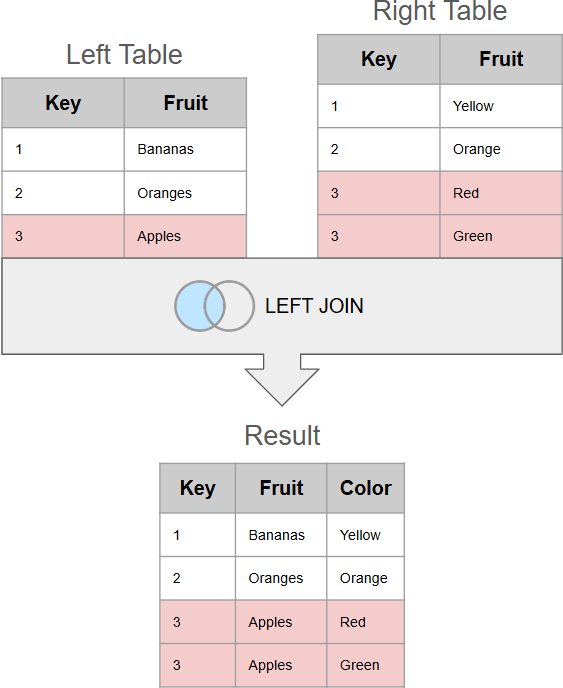
Finally, there can be a situation where both tables contain duplicate matches. This will create the so-called Cartesian product of matches - a large number of newly inserted rows with duplicate data. Unless a Cartesian product is intentional, it's a grave join mistake that can lead to disastrous results.
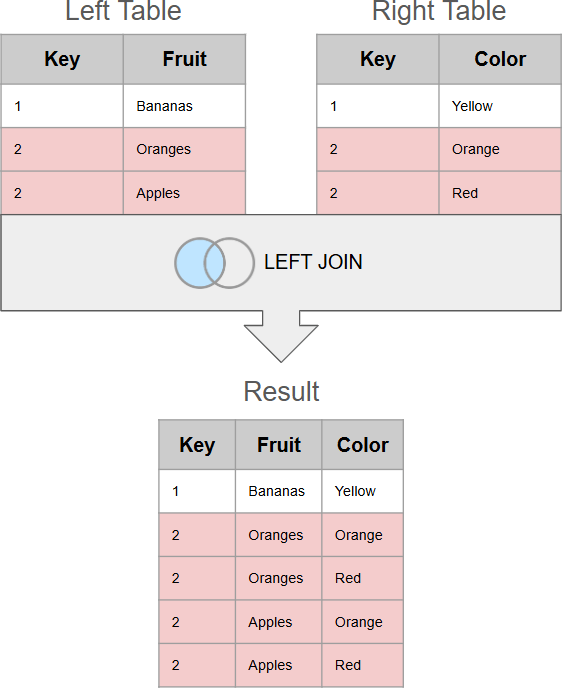
Detection: Check for duplicate key values in both source tables. Also, compare the number or records in the result table to the source tables.
Remedy: Deduplicate the source tables before performing the join or halt/warn if duplicates are found.
4. Ambiguous matches in lookups (semi-joins)
This problem may appear exotic for SQL developers but is quite common in Excel lookups usually performed with the VLOOKUP function. A lookup is technically a semi-join, i.e. a join where only the first match is taken, and if more matches exist, they are ignored.
When for each looked up key there is only one or no matches, this is usually the expected behavior. The problem may appear when for the same key there are many matches in the lookup table - i.e. for one SKU in the main table there are multiple product descriptions in the lookup table. Strictly speaking, this may not be a problem if the descriptions are identical - in this case the result of the first match is correct because the rest are the same.
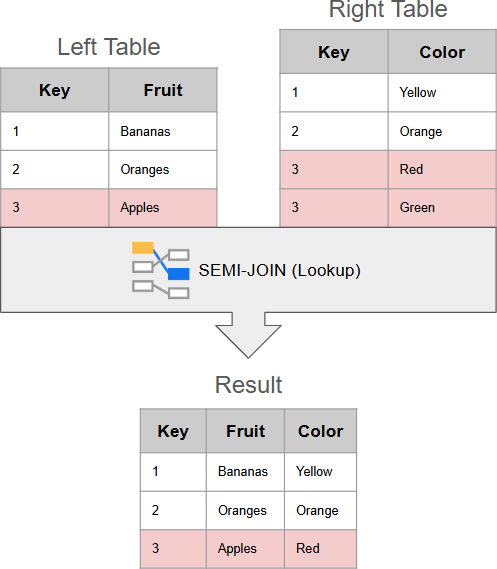
However, in practice, it's rarely the case. Most frequently, when a lookup has (by mistake) multiple matches with different results it constitutes a problem because it creates ambiguity - the lookup must return one result, but it's not clear which result out of many is correct.
Detect: Check for duplicates in the lookup table before joining.
Remedy: Deduplicate the lookup table to remove ambiguity. Or alternatively, halt/warn when duplicates are detected.
5. Invisible characters in keys
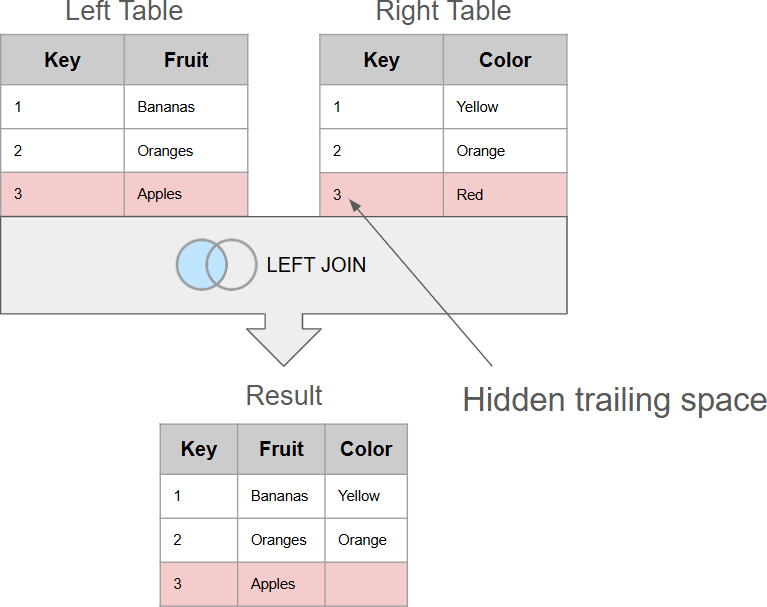
Those who do data joins frequently, might know the odd feeling when you look at a pair of visually identical keys that are supposed to match, but for some reason, don't. After dismissing the temptation to blame a software bug for it, it becomes apparent that if something visually identical isn't equal, then there probably is something invisible that makes the keys not equal and thus don't match.
The most frequent offenders are trailing spaces, but also invisible system characters, such as the tabulation character, that sometimes can sneak in when pasting data from some other application. All of them are invisible by the naked eye and will cause visibly identical keys mismatch.
Another potentially hidden problem can be mismatched data types. A number stored as a string will not match with the exact same number stored as a numeric value.
Detection: Check for non-printable and non-visible characters in the keys. Check the data types of the key values.
Remedy: Sanitize the key values, “trimming” unnecessary spaces and removing non-printable characters. Convert all key values to the same data type.
About EasyMorph
EasyMorph is a next generation ETL and data preparation platform with a strong focus on data visibility and automation. EasyMorph provides a number of tools to help data engineers to identify and resolve incorrect joins:
Merge Profiler
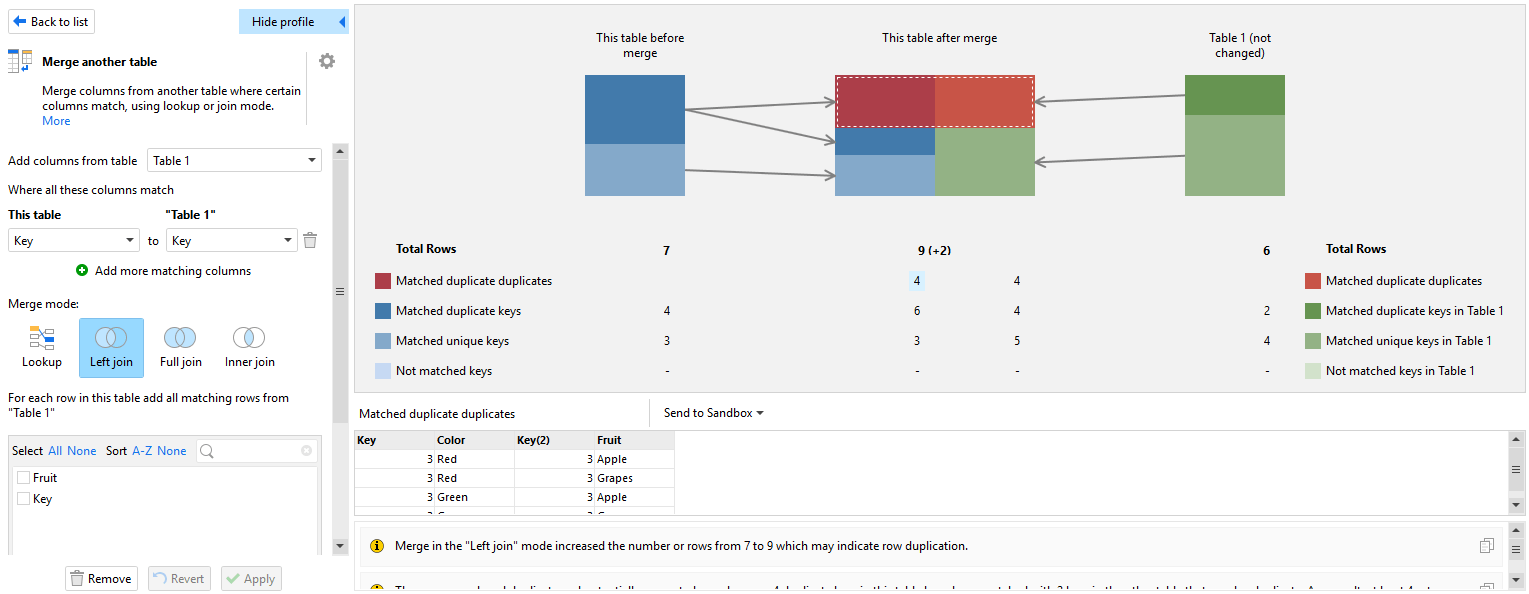
EasyMorph provides an instant merge profiler to analyze joins and detect all the join errors mentioned in this post. In the profiler, you can see, select, and analyze all the matched and mismatched groups of rows in both tables, helping you to understand where things might have gone wrong.
Analysis View
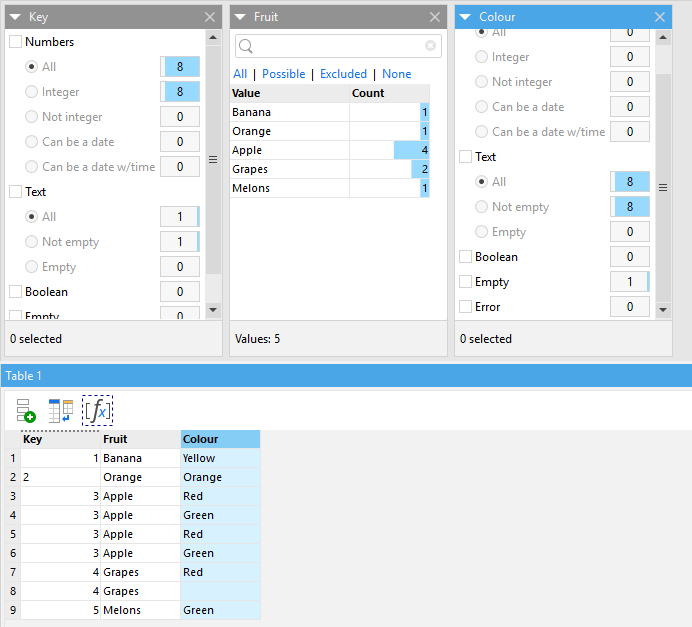
The EasyMorph Analysis View allows you to explore, filter and understand the data in any EasyMorph table. It supports multiple filtering modes, allowing you to find duplicate values, differing data types and nulls / blanks / empty values.
Column and Table Profiler dialogs
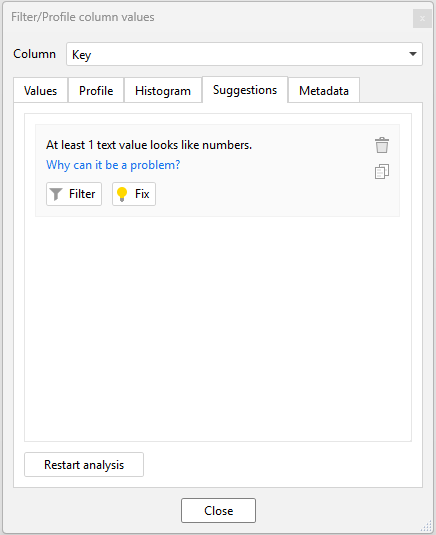
EasyMorph provides both table and individual column profiling dialogs. These let us quickly check entire tables or individual columns for data types, missing values, duplicates and many more problems which might break our joins. The Table profiler even offers suggestions for potential problems and, if possible, actions that can be taken to resolve the problem.
Workflow actions
Although your data looks fine today and your joins are working as expected, this may not be the case in the future. Your perfect EasyMorph workflow can suddenly begin producing incorrect results because a duplicate or erroneous value was added to the source data.
Thankfully, amongst the 200+ actions available to add to EasyMorph data preparation workflows, there are many which are perfect for automatically identifying the potential causes or broken joins as well as stopping the erroneous data ending up in reports and BI dashboards. And of course, letting us know a problem has been found so that we can intervene when needed. Just a few examples include:
| Action(s) | Usage |
|---|---|
 | Generates a table of meta data about a chosen table; including empty counts, number of rows, if all values are distinct and much more. |
 | Remove duplicate rows from the table. |
 | Verify if a table contains duplicates, empty values or non-printable characters and generates a table of all of the problem records. |
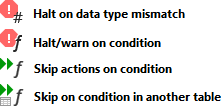 | Halt the execution of the workflow or skip specific actions, preventing bad data flowing downstream into reports or BI tools. |
 | Raise an issue on an EasyMorph Board or other issue tracking system. |
 | Send an email or instant message letting you know that something isn’t right so you can immediately act to fix the problem and rerun your workflow. |
Data contracts
Data contracts can be a great mechanism for documenting what we expect data to look like and when data quality problems exist. The EasyMorph Data Quality Toolkit offers a simple framework to define data contracts as well as testing a set of data against them. Checks can be made for data types, duplicates, missing values and much more making it ideal for spotting data quality problems which may break our joins.