In version 6.1 of EasyMorph Hub, we released a brand new feature called Queries, which lets you organize and execute SQL queries against any database which EasyMorph can connect to. This includes Microsoft SQL Server, Oracle, MySQL, MariaDB, PostgreSQL, Amazon Redshift, Snowflake and any other database using an ODBC driver.
Note: Queries are part of Hub Explorer and so if you have EasyMorph Hub Starter edition or higher you can begin using them right away. In all of these editions, Explorer is available in a single space. To enable Explorer (including Queries) in all spaces, you will need the EasyMorph Hub Explorer Add-on.
Why SQL queries in EasyMorph?
Our goal with EasyMorph Hub is to provide people with tools that match their skill set and let them collaborate together, regardless of their role in the organization.
There are plenty of people in most organizations that are comfortable with writing and/or running SQL queries. Data engineers and SQL developers have dedicated SQL IDEs with all of the features and functionality you could possibly want. But for your average data-savvy business user, these tools are like using a sledge hammer to crack a nut. Instead, Queries in Explorer offer a simple tool for anyone who just needs to run a quick SQL query and view, download, or analyze the result. From performing a quick check to answering an ad hoc data request.
And being integrated with the rest of EasyMorph Hub brings several other benefits, including:
- There’s nothing to install on users computers because it’s entirely in-browser
- The returned data can be easily filtered further and explored.
- Role based permissioning means you can decide who can create, modify or simply run a query. So less data savvy or experienced users can still run queries when needed without the risk of them making a mistake which could impact critical business systems.
- Queries in Explorer use EasyMorph connectors, meaning IT can set up the connection for anyone to use, without having to share credentials.
Although never intended for seasoned SQL pro’s, these additional benefits mean they might well consider using EasyMorph Queries alongside their SQL tool(s) of choice. Data teams spend a considerable amount of their time fielding requests from the rest of the business. Most of these requests are “repeats”, wanting an updated set of data. Although each request only requires digging out and running an existing SQL query, then sending the data to the requester in an Excel spreadsheet, these requests build up and can consume a considerable amount of manhours each month. Instead, why not paste your query into EasyMorph Hub, making it available for the business users to run as and when they need, without having to take up your valuable time.
Enabling Queries
Because of the potential impact running SQL queries against a database can have, by default no users (including Hub administrators) have access to view, edit or execute queries. As a result, the feature won’t be visible in the Hub UI.
You can add permissions for a user role by:
- Navigating to the Hub administration panel and to the Spaces settings.
- Select the space you wish to add permissions for.
- Select the Users & Permissions tab.
- Edit the role you wish to add permissions for.
- Select the desired permissions for Queries.
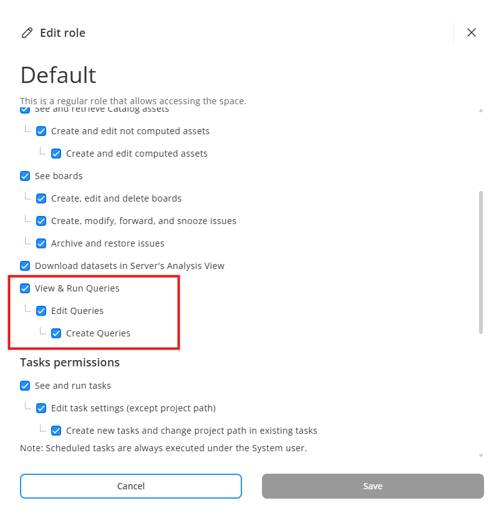
Note: We’ll look at these individual permissions in more detail later in this post.
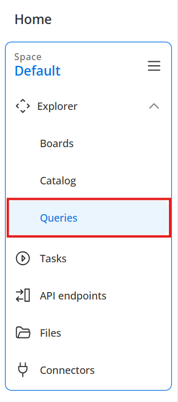
Once enabled, the relevant users can access the Queries feature from the left-hand menu under Explorer.
Querybooks
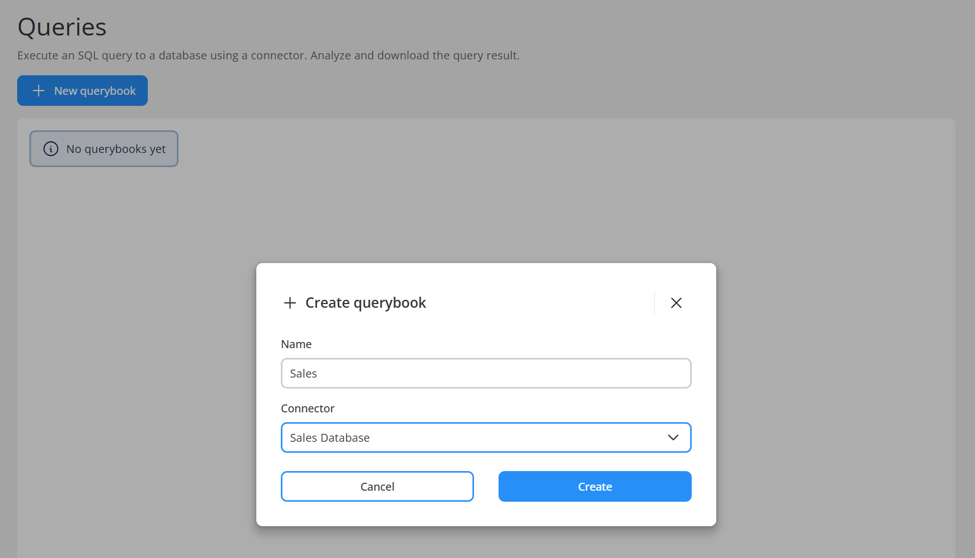
Queries are created and organized into “querybooks”. A querybook is a collection of queries. When creating a querybook, we name it and must specify the connector to use from the Hub space connector repository. This connector provides the necessary settings and credentials for the database we wish to run queries against.
Tip: Query books can also use per-user connectors, also introduced in version 6.1. This means a query can return different results based upon the user running it. For example, if row-level security is applied in the source database, some users may be restricted to only certain data within a table.
With a querybook created, we can now begin to create queries within it.
Creating and running Queries
Creating a query in a querybook is simply a case of clicking on the “New query” button (1), which opens the query editor window.
The query editor is comprised of 3 main sections:
- The SQL statement where we can paste or write our query (2).
- On the left are the database tools where we can see a dropdown to select a table from the database (3). Clicking on the arrow to the right of the dropdown will add the table name to our SQL statement. We can also see all of the fields available in the table (4) and if we hover over any, we will see a similar arrow to add it to our SQL statement.
- At the bottom we also have the results table (6), which will of course be empty until we run the query.
Tip: You can drag the divider between the SQL statement and results table to make them larger or smaller as needed.
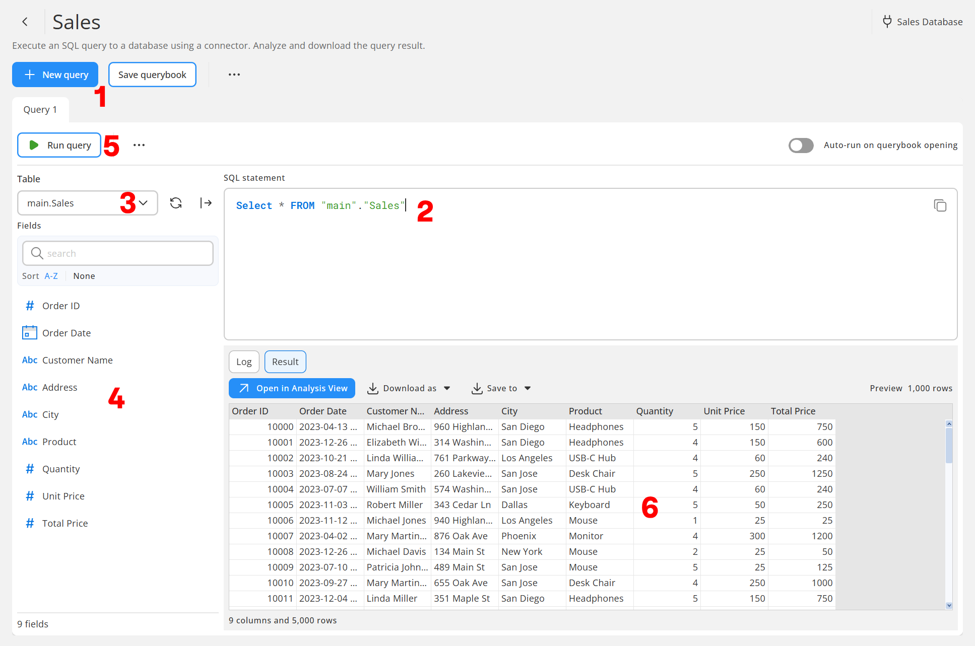
With our statement complete, we can click on the “Run query” button (5) to do exactly that. The resulting data table will update to show the returned data.
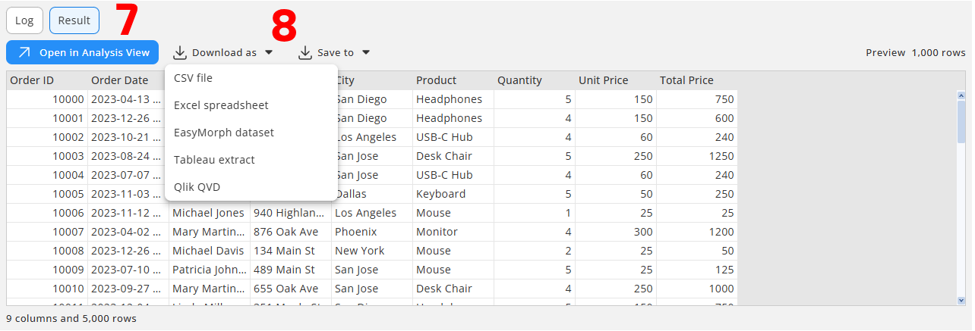
There are options just above the results table to open the data in Analysis View (7) for further filtering and profiling, as well as options to download the data (8) as an EasyMorph dataset (.dset) file, a CSV, Excel spreadsheet, Tableau extract or Qlik QVD file. You can also save the data to the Hub in any of the same formats.
Although we’ve covered the full capabilities, the role based permissions we saw when we enabled Queries mean that we can give users more or less functionality. The permissions work as follows:
- View & run Queries — Can see the querybooks and queries in them, including the detailed SQL statement and can run them. They can’t modify or create new queries. They can of course open the results in Analysis View or save them as a data file.
- Modify queries and create new queries (without saving them) — Can also edit existing queries before running them or create new queries, but can’t save their changes to the querybook.
- Create, edit, delete, and save querybooks — Can also create new querybooks and queries or modify and save existing ones as well as rename querybooks or change the connector in a querybook.
These differing permissions mean we are able to give a user the relevant access to meet their needs and skill sets. More experienced SQL gurus can prepare queries for others to use as and when they need. Helping everyone involved in providing and consuming data to collaborate, whilst minimizing the chance of less experienced users making a mistake that could impact your database.
Summary
Explorer Queries are yet another way EasyMorph Hub helps to improve data access, maintain data security and promote collaboration across data and business teams. We’ll be bringing some more improvements to Queries in coming versions, so keep an eye out in future “What’s new” blog posts.