In version 6.1 of EasyMorph Hub we introduced the ability to create OData (Open Data Protocol) endpoints. This is a big deal because for the first time in EasyMorph’s history, it’s possible to pull the data you have in EasyMorph directly into other tools and systems, such as BI platforms, other data or ETL tools, Excel, or anything else which supports loading data from an OData feed.
Note: If you have EasyMorph Hub Starter edition or higher you can begin creating OData feeds right away.
Why use OData endpoints?
EasyMorph Hub has for a long time been able to expose data by creating REST API endpoints. These endpoints are extremely flexible and powerful, but they also require a significant amount of technical expertise to implement and use. As such, they are perfect for integrating other business systems with EasyMorph, but are not ideal for business users. That’s why we’ve introduced OData endpoints as a more user-friendly option that can be used by data analysts and power users.
As we’ll see below, OData endpoints can be created on top of any EasyMorph dataset (.dset) file in just a few clicks without writing a single line of code. And using them in other data tools is even simpler.
Enabling API endpoints
Before we can create OData endpoints, we must first enable the API server feature for any Hub space where we wish to use them. To do this:
- Navigate to the Hub administration panel and to the Spaces settings.
- Select the Space you wish to add permissions for.
- Toggle on the “API server” feature.
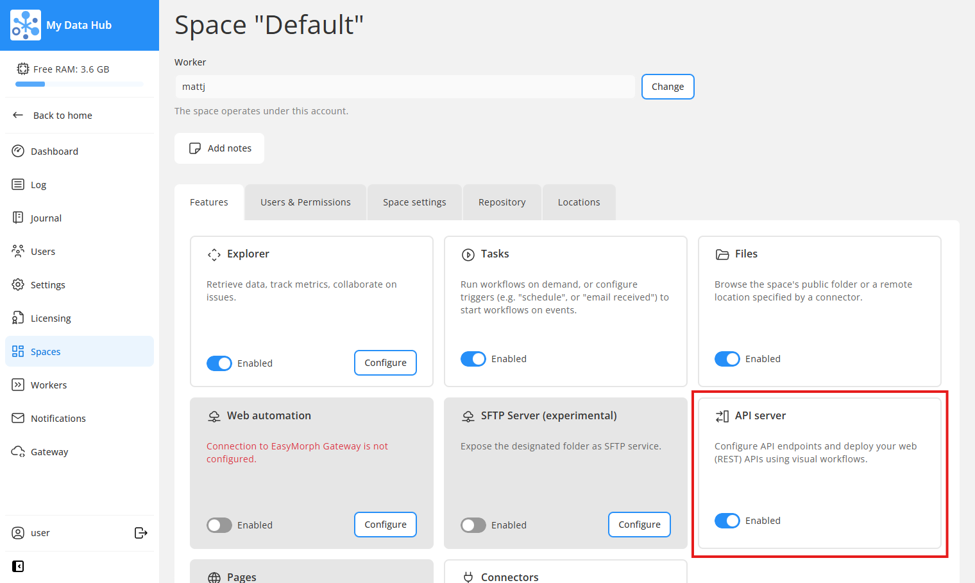
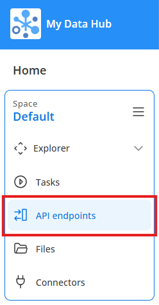
Once enabled, you should see the “API endpoints” section in the left-hand navigation menu.
Creating an OData endpoint
The API endpoints section of EasyMorph Hub now contains 2 tabs:
- REST for creating REST API endpoints based on EasyMorph workflows as you have been able to do for some time.
- OData where you can now configure OData feeds based on EasyMorph dataset (
.dset) files.
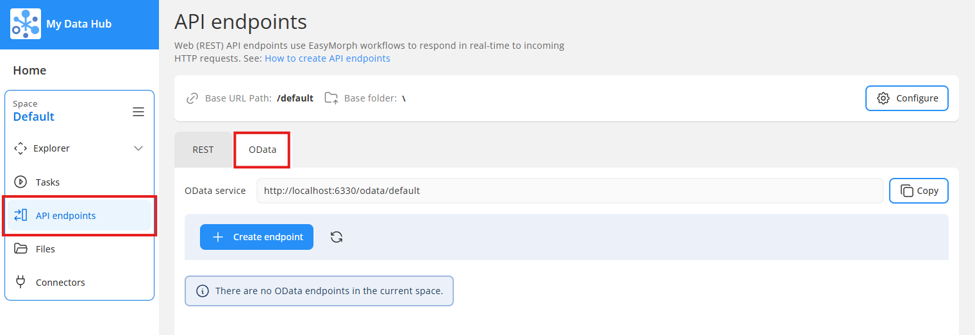
Creating an OData feed couldn’t be any simpler. On the “OData” tab, click on “Create endpoint”, give it a name and URL path slug (the last part of the URL which will be used to access the feed). Once created, click on the name of the feed where you can configure the .dset file and other options.
Tip: Both the endpoint name and path can only contain upper and lower case Latin letters, numbers and underscores. It also must not begin with a number.
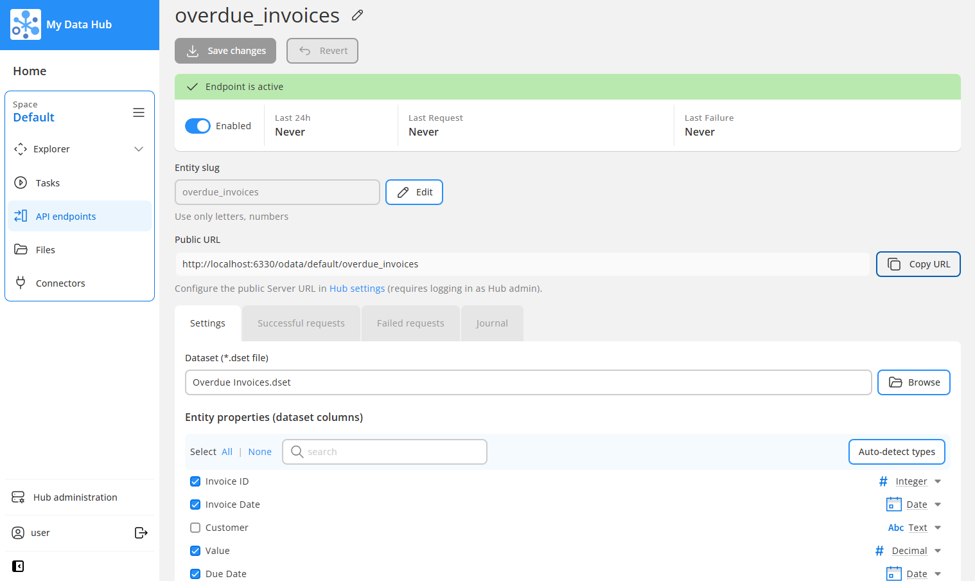
Select the EasyMorph .dset file you wish to use for the feed, and configure which fields you want to include assigning their data types.
Tip: If you aren’t sure about which data types to use, you can click on the “Auto-detect types” button and EasyMorph will try to detect and assign the most appropriate data type based on the data in the .dset file.
OData feed URLs
EasyMorph Hub generates two types of URLs that we can use to access the OData endpoints from another tool or system. Depending on what application you connect to EasyMorph, you may need to choose either one or the other type of URL.
Endpoint URLs
For each OData endpoint we create, Hub generates a “Public URL” which ends in the URL slug we specified when creating it. It can be found and copied from the endpoint’s settings page.
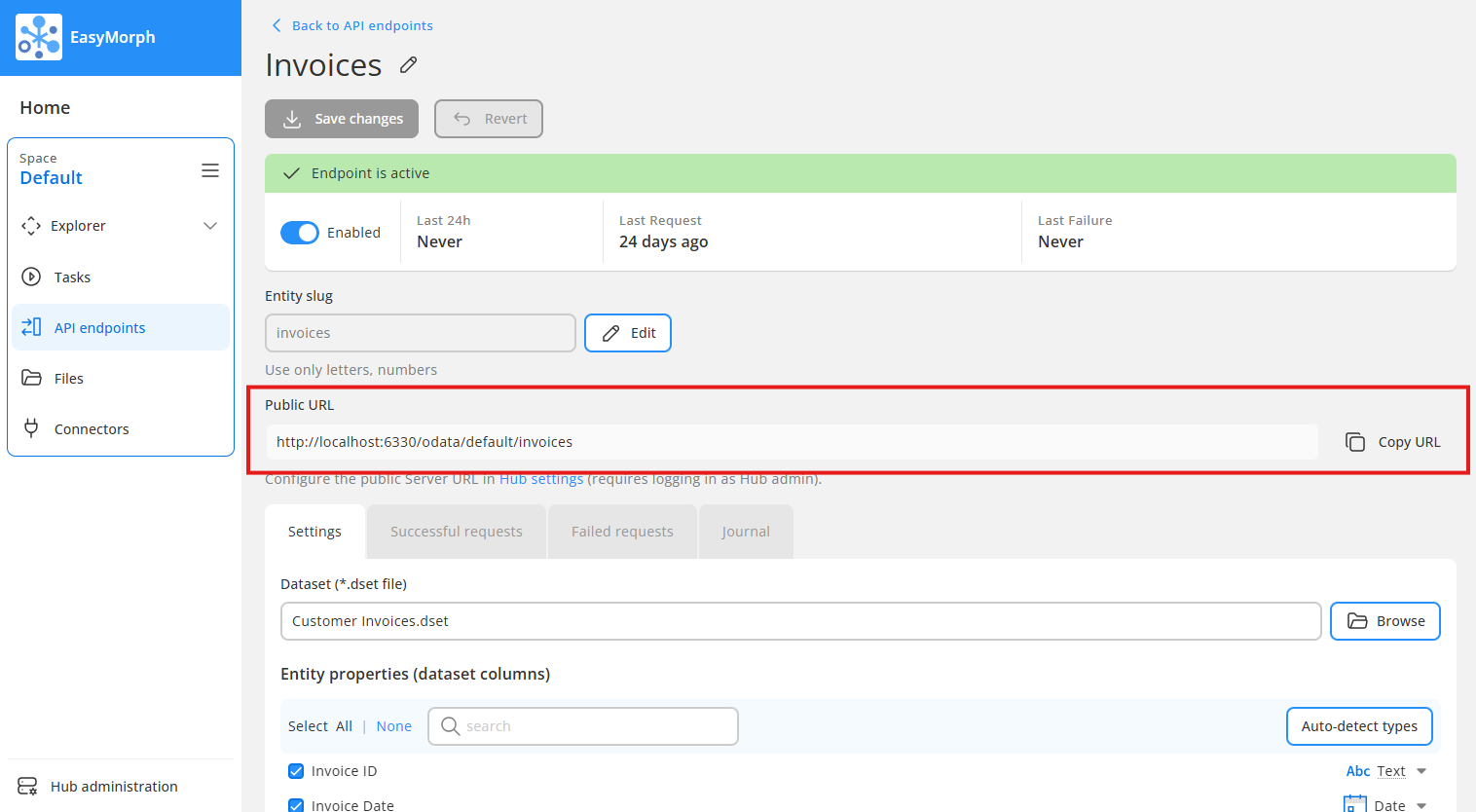
Using this URL in another tool or system will connect it directly to the specific endpoint; effectively connecting to a single table of data. Use direct endpoint URLs in applications like Excel, or Power BI.
OData service URL
A URL is also generated for the OData service for each space in which it is enabled. It can be found and copied from the “OData” tab of the “API endpoints” feature.
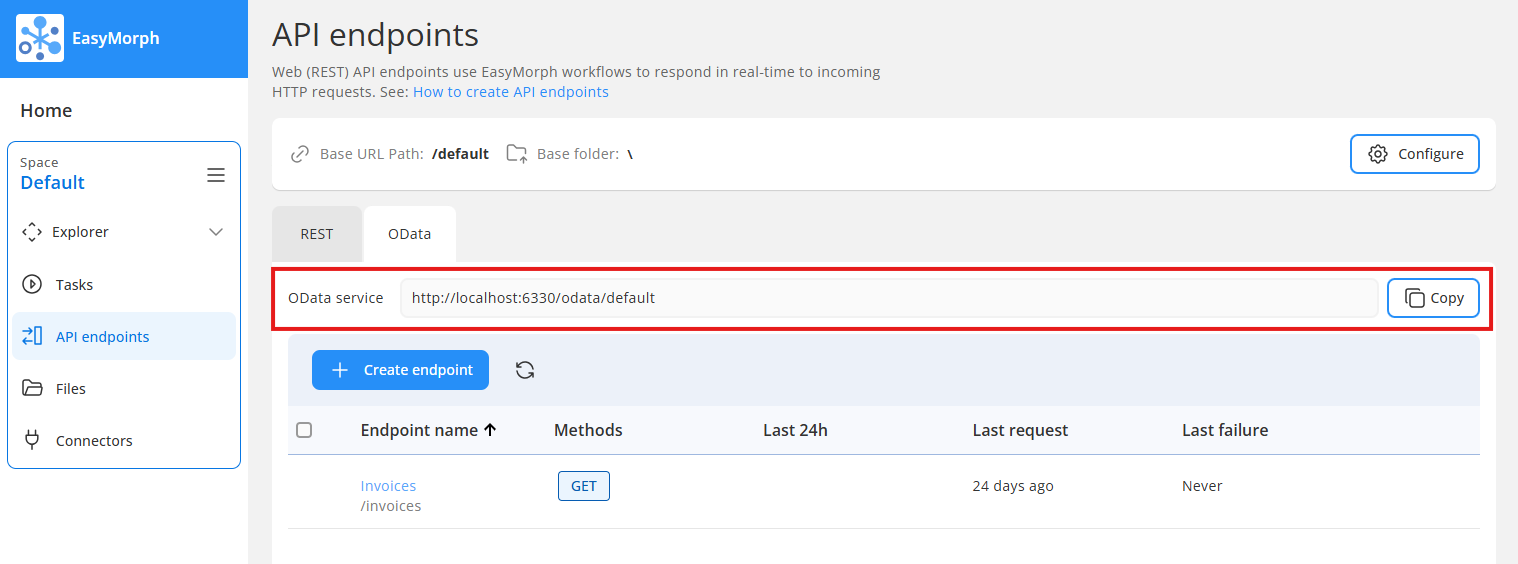
This service level URL can be used in other tools and systems to allow them to browse and access all available endpoints in the space. Use the OData service URL in Tableau and Qlik.
Securing OData endpoints
You likely do not wish to simply expose your data in this way without any form of security controlling who can access it. Thankfully, EasyMorph Hub has this covered already. At the top of the Hub API endpoint homepage is a “Configure” button.
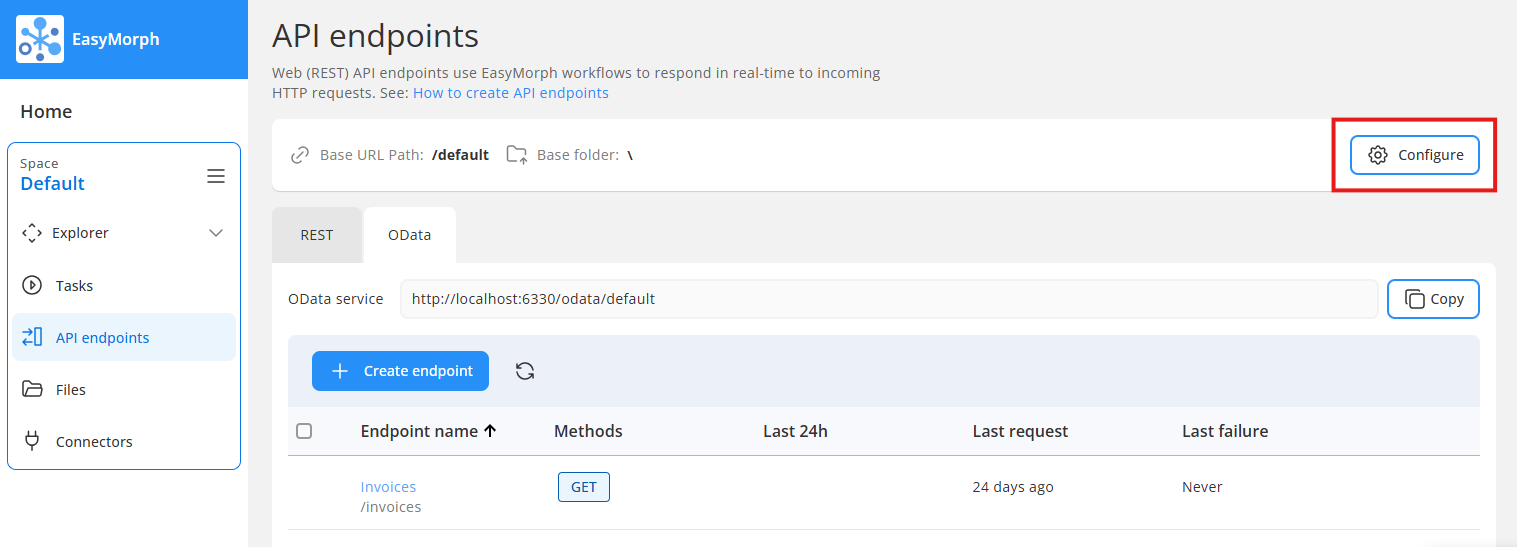
Clicking this button exposes some additional settings for the API server, including an “Authentication” tab where we can configure various methods of securing EasyMorph API endpoints.
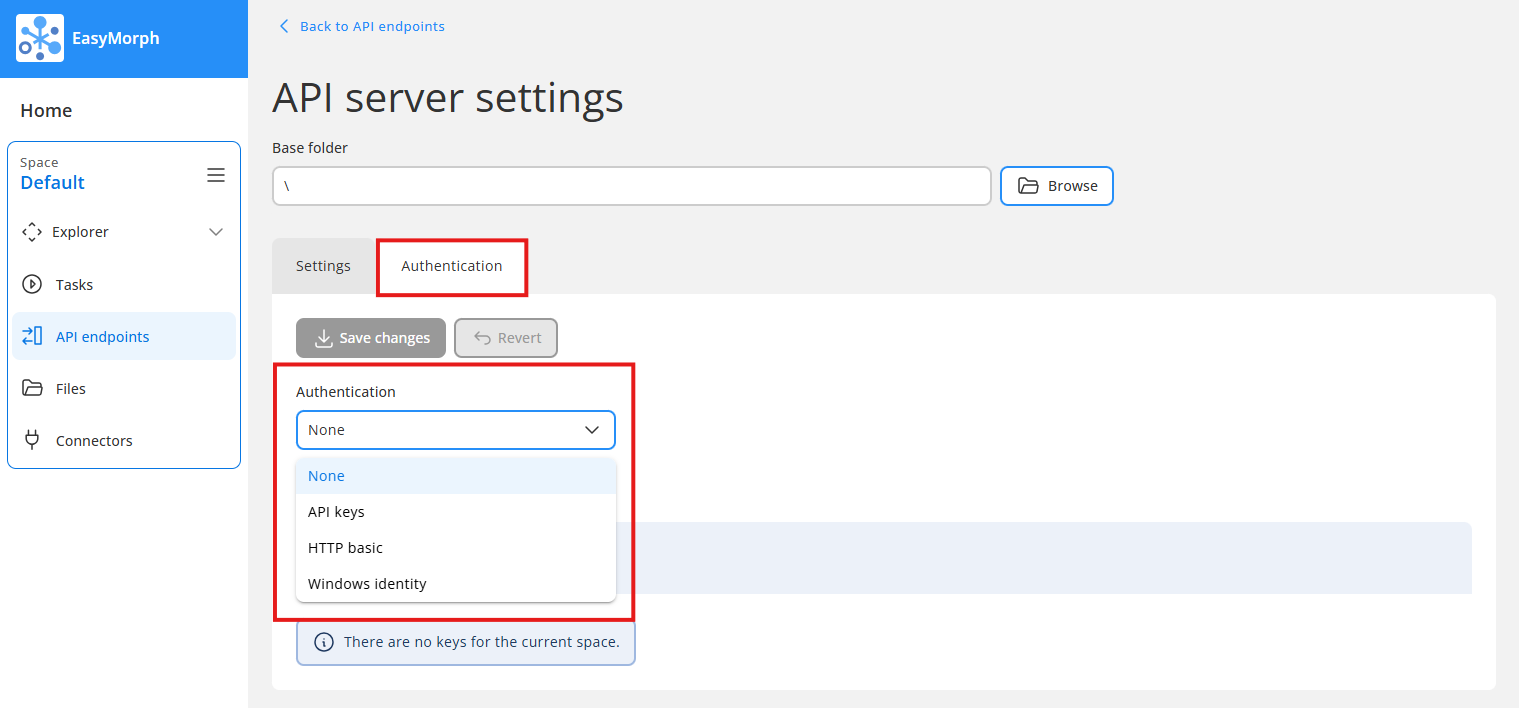
API authentication modes:
- None — No security will be applied and all API endpoints will be available without authentication.
- API key — Allows you to generate API keys and specify how they should be used to authenticate using HTTP header fields or query parameters. The list of API keys and their names is configured in the table below.
- Basic HTTP — Use the usernames and passwords of EasyMorph Hub users to authenticate. In this mode, configure the logins (keys) and secrets in the table below.
- Windows Identity — This option is intended for REST endpoints and not suitable for OData endpoints.
Using OData endpoints in other tools such as Excel
With our OData endpoint(s) configured, we are ready to begin using them in other data tools and systems. It would be impossible for me to cover every tool which can be used to pull data from EasyMorph using OData. But to get an idea just how easy it is, let’s take a look at two of the most common — Microsoft Excel and Tableau.
Microsoft Excel
As it is the most commonly used data tool, let’s look at Microsoft Excel and how we can pull data directly from EasyMorph using OData.
If we open Excel and go to the “Data” tab, we can select the option to “Get data” → “From Other Sources” → “From OData Feed”.
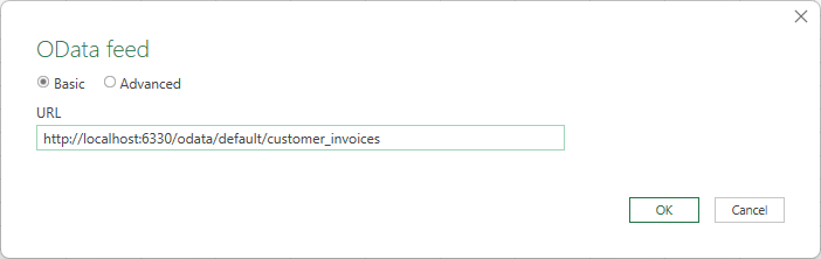
I’m going to use a specific endpoint URL. When prompted by Excel, paste in the URL copied from EasyMorph. If you’ve configured authentication for your EasyMorph API server, you’ll need to enter the appropriate credentials or API key also.
If we click on “OK”, our data is then loaded into Excel ready for us to do whatever we need. It really is that simple!
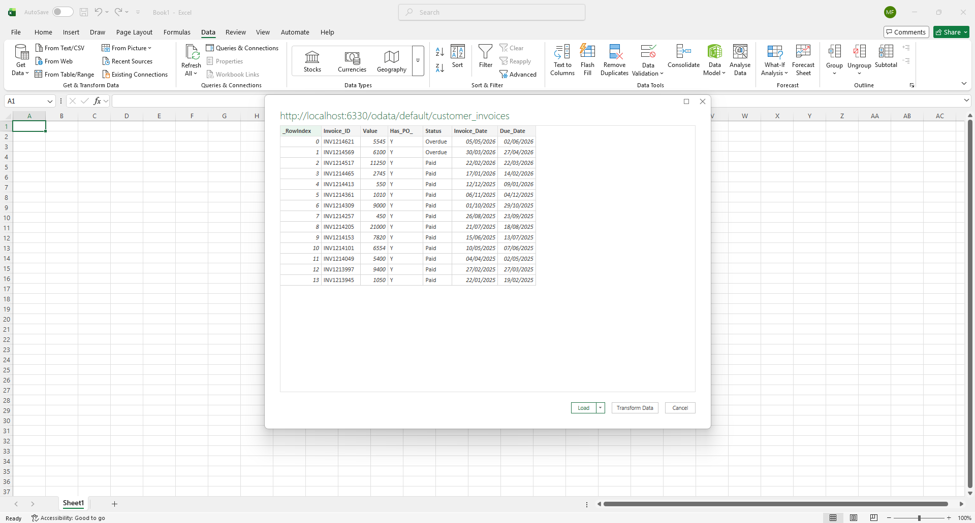
The most exciting part of using OData in this way is that the connection is “live”. For instance, you can pull a dataset from EasyMorph to an Excel table and build charts and pivot tables based upon it. If we then simply refresh the data source in Excel to bring in a newer version of the table, all of the charts and pivot tables will update automatically. No more manual data copying! Just click the “Refresh all” or “Refresh” button in the “Data” menu in Excel.
Tableau Cloud
In Tableau Cloud, using EasyMorph OData endpoints is equally as simple. Create a new data source in Tableau and select “OData” as the connector. Paste the URL copied from EasyMorph Hub into the “Server” field.
Tip: I’d highly recommend using the “OData Service URL” rather than a specific endpoint URL, as it will allow you to pull multiple endpoints as separate tables, which you can then join together and use in your Tableau reports and dashboards.
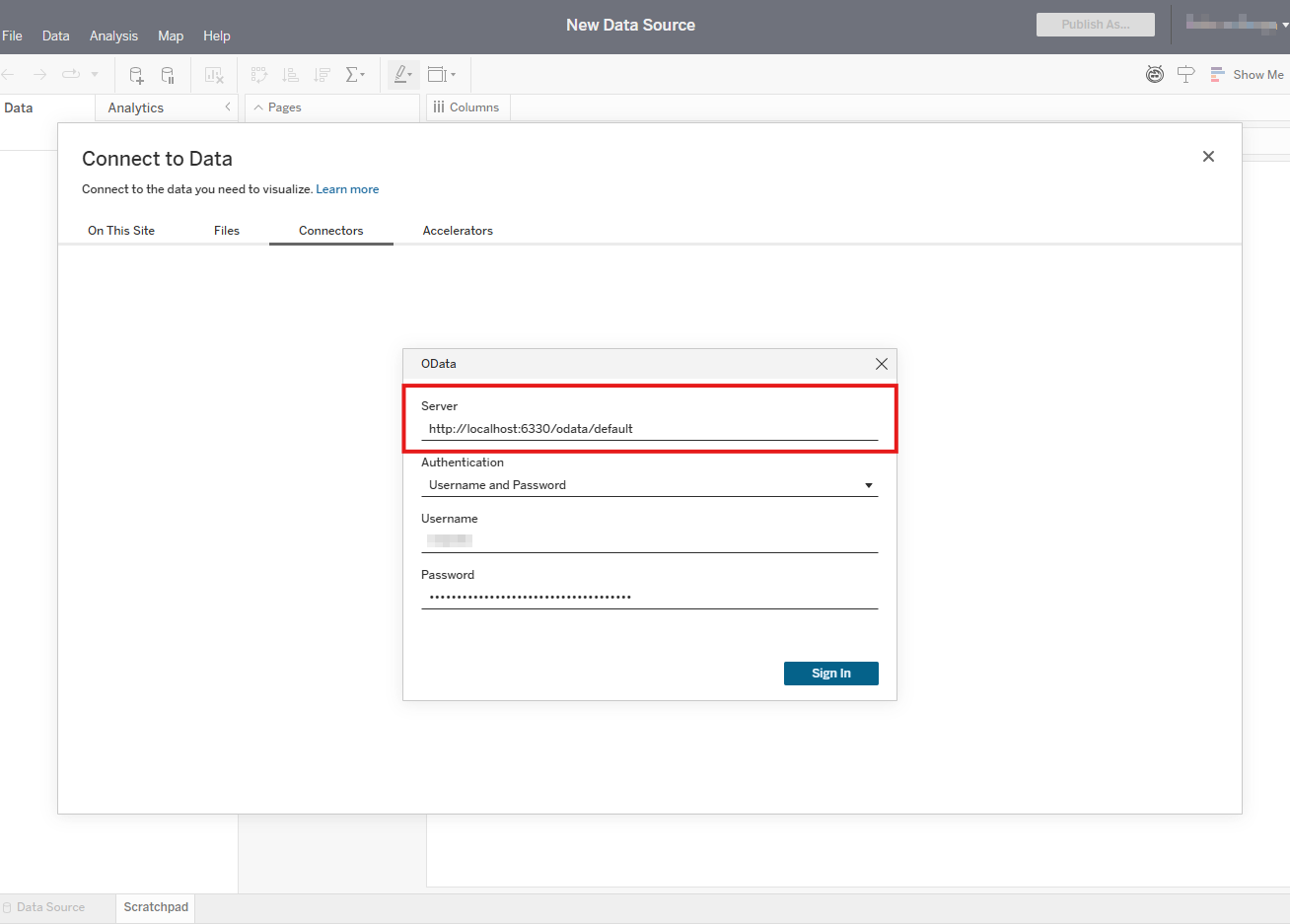
As with Excel, if you’ve secured your EasyMorph API endpoints you’ll need to provide the relevant details also.
With the Tableau data source created, we’ll see a list of tables in the left-hand sidebar, each of which corresponds to an OData endpoint in EasyMorph Hub. We can drag-and-drop the tables from the sidebar, and if adding more than one, define relationships between them.
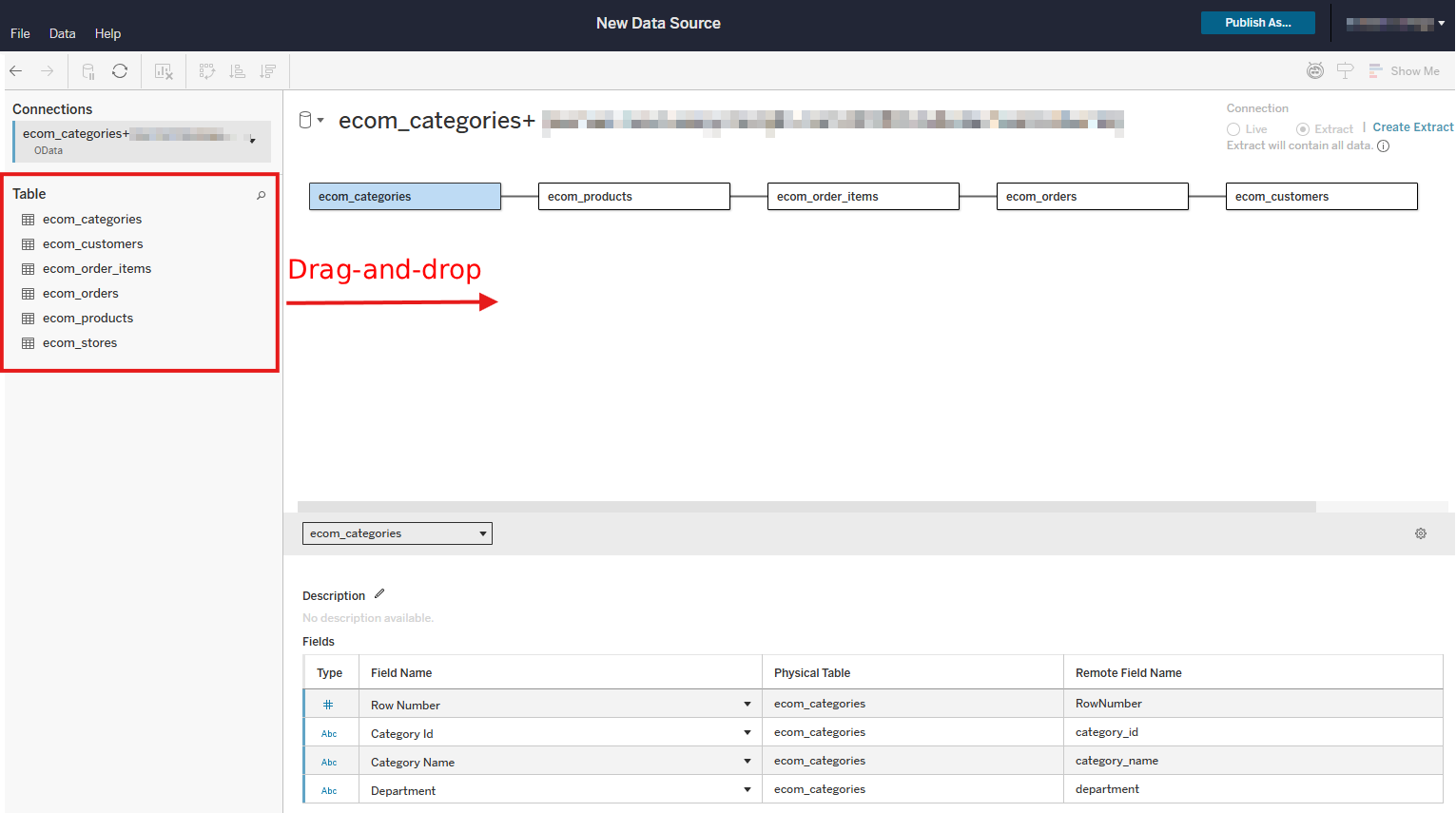
Publishing the data source will create an extract of the data and we’ll be able to start using it to create reports and dashboards, just like with any other data source in Tableau. We can also schedule the data to refresh as needed. This is one more way EasyMorph can work seamlessly with Tableau.
Summary
Most data tools tend to only work well with other tools from the same vendor, or their chosen partners. At EasyMorph, we want our software to integrate seamlessly with, and complement whichever data tools or business systems you already have or which you choose. The ability to easily publish datasets as OData endpoints without having to write a single line of code is the latest in a long line of features intended to make this possible.
Whether it's Excel; BI tools such as Tableau, Power BI, Qlik or Looker; or other data preparation and ETL tools such as Alteryx, Informatica or Talend; OData endpoints offer another way you can seamlessly integrate them with EasyMorph.